
Permission-based screen sharing
A remote session only starts after you launch the connection tool and share the one-time code. You can see everything we do, take back control at any time, and end the session with a click.
Guided, Secure Help for Software and Account Problems You Don't Need Someone in the Room For
If the printer stopped working after an update, email won't sync on a new phone, or the software the grandkids installed doesn't behave, a screen-sharing session is often the fastest way to fix it — without a visit, without unplugging anything, and without leaving the couch.
A lot of the technology problems that ruin a morning aren't really 'broken computer' problems. They're a Wi-Fi printer that dropped off the network after firmware updated overnight, an Outlook that stopped syncing after a password change, a browser that suddenly opens PDFs the wrong way, or a Microsoft 365 sign-in loop after a family member changed a recovery phone number.
Inoconn's remote tech support is built for exactly those situations. With your permission and while you watch, one of our technicians connects to your screen, walks through the problem the same way we would in person, and either fixes it directly or shows you how — on Windows, macOS, and, for guidance-style help, on iPhone, iPad, and Android.
The service isn't 'a tech takes over your computer and does mysterious things.' You see every click. You keep your keyboard and mouse. You can end the session at any time, and when we disconnect, there is no lingering way for us to come back in without you starting a new session.
We're also honest about where remote support ends. A laptop that won't turn on, a printer with a jammed feed roller, a router that has stopped broadcasting Wi-Fi entirely, or a screen with visible damage — none of those get better through a screen-sharing session. When the problem is physical, we say so and either schedule an in-home visit or point you at the fastest path to a fix.
Inoconn Commitment
Every service we deliver is backed by our satisfaction guarantee and decades of combined IT expertise.
The setting
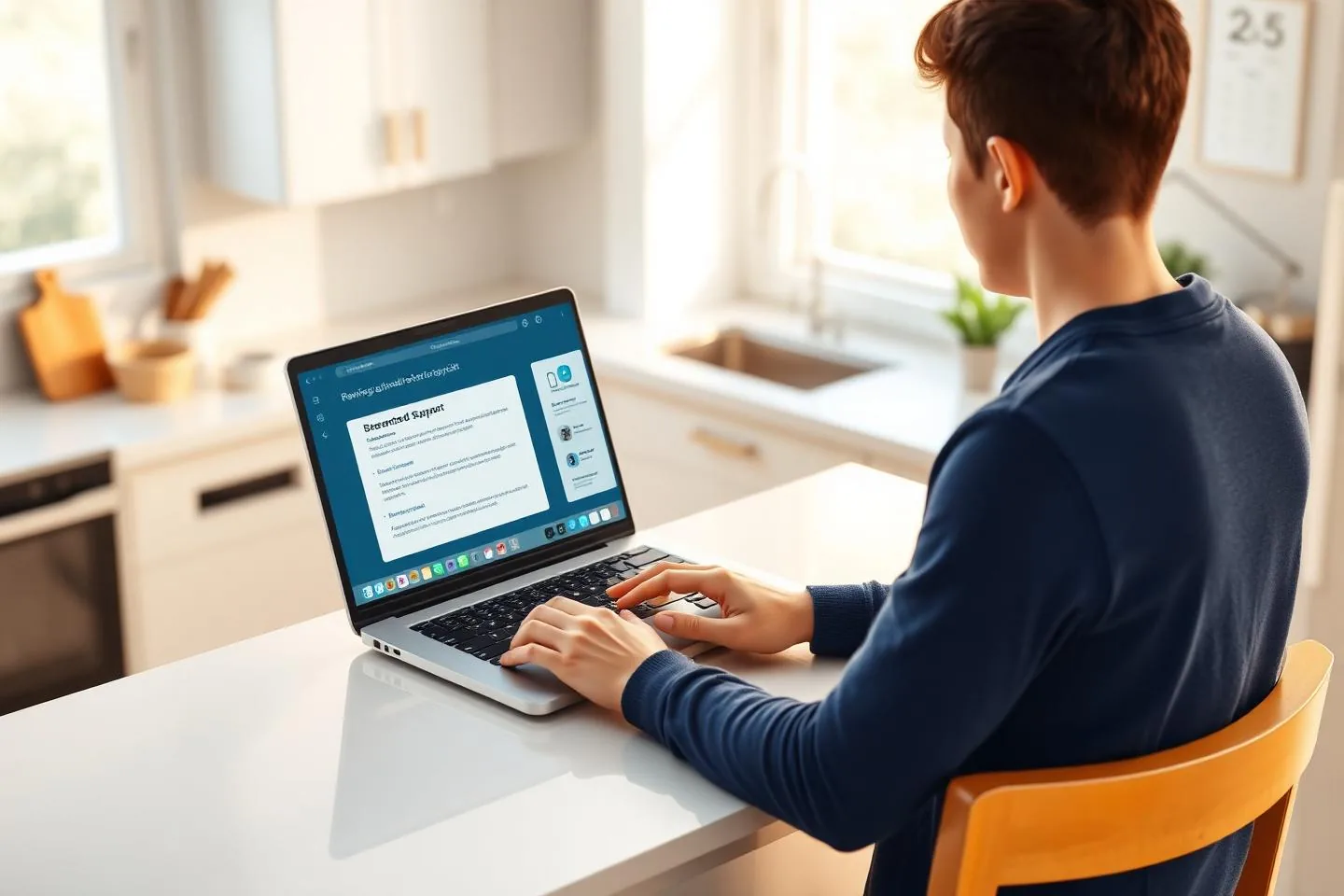
You don't have to move your setup, load a device into a car, or wait for a visit. Most everyday issues can be handled from your kitchen counter.

Critical Insight
Many home tech problems have a 'the answer is in Settings' quality. Someone spends an hour reading conflicting forum posts and trying suggestions that don't quite match their version of Windows or macOS, when the real fix is a two-click change in a menu they've never opened. Remote support turns that hour into a few minutes.
Guided sessions are also the safest option for older family members who have been targeted by scam pop-ups. Working together on a legitimate session — one they can see, hear explained, and end — rebuilds confidence that they can tell the difference between real help and the scary pop-up that tried to look like it.
Finally, a lot of small annoyances quietly stack up. Notifications no one knows how to turn off, browser tabs that reopen themselves, printers that print blank pages, a phone that no longer backs up. Handling several of them in a single session is often the difference between a device that feels manageable and one that feels adversarial.
How it looks
You stay in control the whole time. We connect, walk through the issue together, and disconnect when you're satisfied it's resolved.
Problems → Solutions
Outlook, Apple Mail, Gmail, or the built-in Mail app on Windows and Mac stopped syncing, keeps asking for a password, or is missing messages after a device change.
Every session starts with you accepting the connection, and every session ends when either of us disconnects. There is no always-on, silent remote access unless you specifically ask for it and understand what it means.
The wireless printer that worked yesterday isn't found by the computer today. Often a driver, IP address, or spooler issue rather than a broken printer.
Where the goal is 'so you can do this yourself next time,' we run the session as a walk-through with you at the keyboard while we narrate and highlight what to click.
Sign-in loops, missing OneDrive or iCloud files, recovery codes that don't arrive, or a new phone that won't accept the authenticator app.
Password resets on Microsoft, Apple, and Google accounts, help re-establishing multi-factor authentication after a new phone, and sorting out the sign-in loops those changes commonly cause.
Windows Update stuck at the same percent for hours, macOS updates that fail near the end, or a specific app that refuses to launch after a change.
Configuration and troubleshooting for the mail and cloud storage most home users actually depend on, including 'why can't I see the files I know I saved?' cases.
Zoom, Teams, Google Meet, or FaceTime that can't find the microphone or camera, especially on a new laptop or after headphones were paired.
Installing a legitimate app the right way, removing something that installed itself, or replacing an outdated tool with a supported version.
Default browser, default PDF viewer, notification behavior, sign-in options, backup schedules — each is a small dial with a big effect once you know where it is.
If we find a problem that clearly isn't remote-fixable — a physical fault, a network device that has to be reset in place, damaged hardware — we say so during the session and plan the next step.
Sound familiar?

Step by Step
You don't need to know the technical name for what's wrong. 'Every time I open Outlook it asks for my password' is exactly the level of detail we need to get started.
We send a link or a short code. You open it, approve the connection, and see a small on-screen indicator that a session is active. Nothing runs before you say yes.
You keep your mouse and keyboard. We take control where it's easier for us to demonstrate, and hand it back when it's easier for you to try. Nothing happens off-screen.
Before we disconnect, you repeat the action that failed — sending a test email, printing a test page, opening the file that wouldn't open — so we both see it work.
You close the session, or we do. Any temporary connection tool used only for the session is uninstalled or expires. We don't keep a way back in unless we've explicitly set one up with you.
Windows 10, Windows 11, and current versions of macOS — plus guidance for iPhone, iPad, and Android settings where the problem is on a phone or tablet.
Our default connection method runs from a short-lived link or code and doesn't leave anything installed after the session ends.
Sessions arranged for parents, grandparents, or a college student in another city, with the person paying for the help able to sit in remotely if they want to.
A short recap of what we changed so the household has a record and doesn't have to reconstruct it from memory next week.
If a session is heading toward two hours because the problem is bigger than remote work can solve, we say so and move to a proper diagnosis rather than grinding on.
For families that want faster help next time — for example, a parent supporting an older relative — we can set up longer-lived, clearly-labeled remote access with permission from both people.
Process
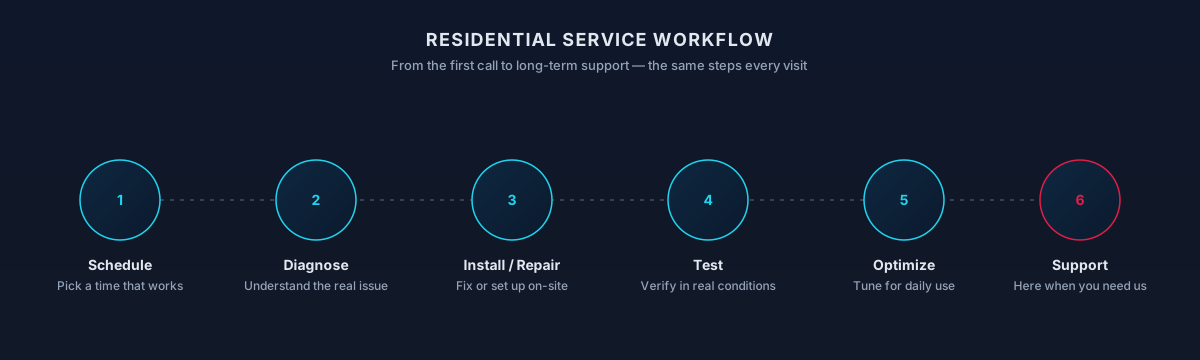
You approve a secure remote session — no background access.
You see the cursor and every action in real time.
If remote can't fix it, we'll say so plainly.
Session closes when you close it. Nothing stays behind.
Timing varies by household — this is a typical shape, not a promise.
Scope
Included
Outcomes That Matter
The desktop stays hooked to the printer, the monitors, and the surge protector. Nothing gets carried anywhere.
Key Advantage
The 'I can't get into email before my meeting' class of problem gets resolved before the meeting starts, not the next day.
Walking through settings together builds a working sense of what is normal, so the next scam pop-up is easier to recognize.
You don't spend an hour on a remote session for a hardware fault. If we can tell early that on-site is the right answer, we say so.
Expected outcomes
Small issues handled without scheduling a visit.
Steps explained, not hidden.
You start the session; you end it.
The result
Most home tech issues don't need a truck roll. When they do, we'll tell you — and we'll be honest about it.

Whether you're a homeowner, small business, or enterprise — we tailor our approach to your specific needs.
The kind of user who needs a specific application, VPN, or Microsoft 365 tenant working again in the next thirty minutes rather than tomorrow.
Adult children helping a parent in another city — or the reverse — where 'drive over and look at it' isn't practical.
Sessions run at a pace that isn't rushed, with narration and explanation, and with the person at the keyboard the entire time.
For account, sync, and 'why can't I see the file I saved?' problems, remote support is usually the right first step.
We leverage industry-leading platforms and enterprise-grade equipment to deliver reliable, future-proof solutions.
Short-lived, permission-based sessions that don't require pre-installing software. You see a clear indicator that the session is running.
Sign-in, OneDrive sync, Outlook profile, and shared-family-subscription help.
Sign-in recovery, iCloud storage and Photos, Family Sharing, and iCloud Drive sync.
Recovery, sign-in on new devices, backup and photo sync, and Chrome profile issues.
Print queue and spooler resets, driver reinstalls, and Wi-Fi printer rediscovery for the most common home brands.
Windows Update troubleshooting, macOS combo updates, and safe rollback of updates that broke something the user relied on.
Remote tech support is the fastest option for most household questions — settings, app problems, printing, email, cloud storage, and account access — as long as the device can reach the internet. A short remote session usually resolves what a call alone can't.
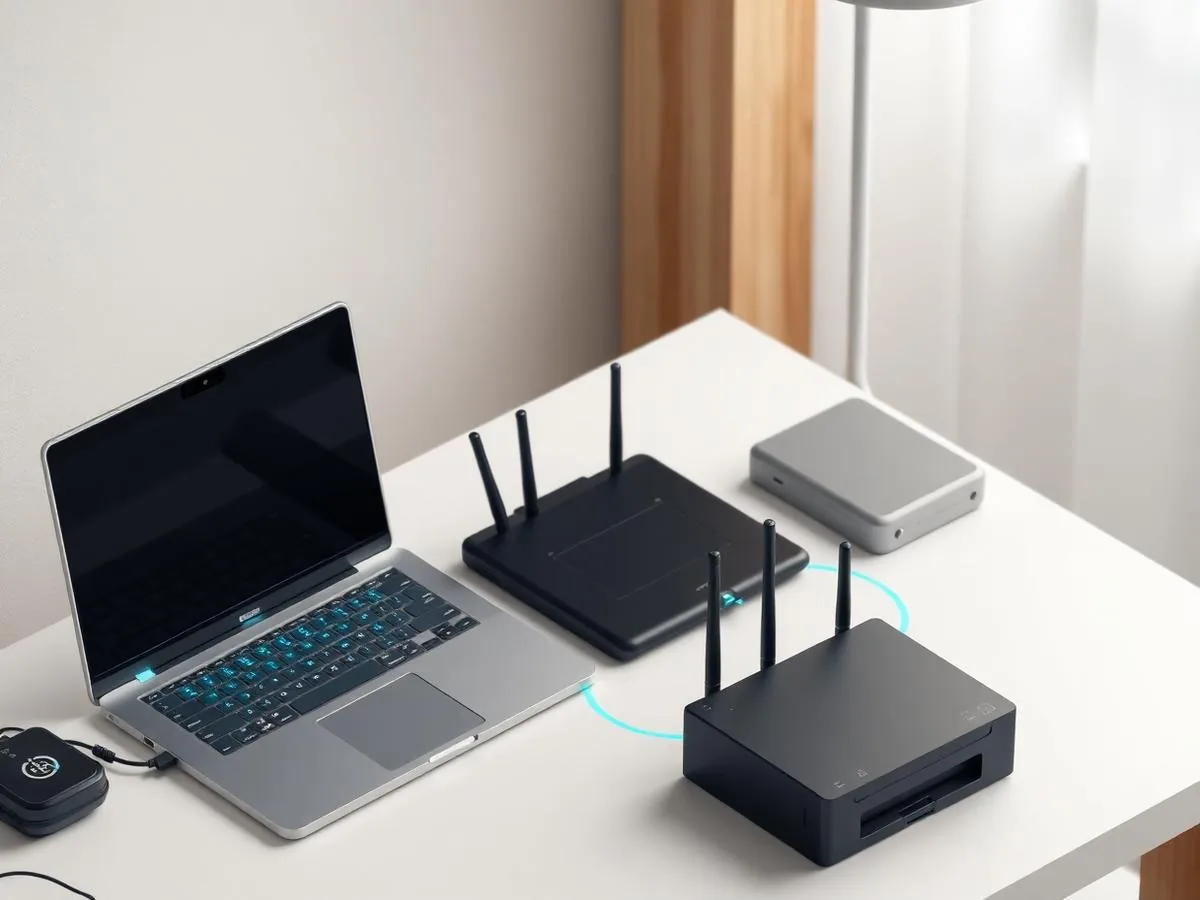
Some situations still need hands on the equipment: a computer that won't power on, a router that has to be swapped, or hardware that is physically damaged. When that happens we help you decide between an in-home visit across the Las Vegas Valley or a device drop-off path.
Not sure if your address is covered? Check the full service areas map or contact us to confirm.
A single, well-defined issue — the printer, the email password, the missing OneDrive files — resolved end-to-end.
A longer session covering several small annoyances at once, ending with a short list of what changed and why.
Sessions arranged for a family member in another home or another state, with the person coordinating help able to be present remotely if they'd like.
Straight answers to what homeowners ask most. Not seeing yours? Contact us and we'll walk you through it.
Get in touch and we'll help you sort out the technology at home — from a single frustrating device to your whole network. Talk with a real home technology specialist and get straightforward answers.
Friendly, patient help — no jargon.
Before you reach out
A short checklist for the device you'd like help with.
The next steps
A calm, step-by-step flow — you're in control the entire time.
Tell us what you're seeing and which device is affected.
You approve the connection on your end before anything starts. You can end the session at any time.
We explain what we're doing as we work, and answer questions in plain language.
If anything needs follow-up — in-home visit, hardware, or backup — you'll get a clear summary.
What to expect
A remote session only starts after you launch the connection tool and share the one-time code. You can see everything we do, take back control at any time, and end the session with a click.
Anything physical — a computer that won't power on, a damaged screen, a router that needs to be moved, cabling behind a TV — needs an in-home visit. Wi-Fi coverage problems also usually need someone on-site with the router in hand.
Remote support depends on a working internet connection on the affected device. If the device can't get online, we'll switch to a phone walkthrough to restore connectivity or schedule an in-home visit instead.
We don't install persistent remote-access agents on household computers as a default. When the session window closes, our access is over — and you can uninstall the connection tool at any time.
If a laptop or phone is owned or managed by your employer, we won't remove security controls, bypass MDM, or change work-account settings. We can help with the surrounding home setup — network, printer, monitor, workspace — and point you to your IT team for anything policy-controlled.
Not sure which one you need?
Remote support is fast help for a defined issue on one device. Home IT support is broader in-home triage.
Choose this when one device has one clear issue and can get online for a screen share.
Covers
Not this page
Choose this when the problem spans devices, users, or physical hardware.
Covers
Not this page
Choose this page if: One device, one issue, and it can get online.
Choose the other page if: Multiple things at home need looking at — or hardware is involved.
What to try next
If this isn't quite the right service — or you're wondering what usually comes next — these are the services homeowners most often need alongside or after this one.
If you'd rather not troubleshoot piece by piece, ongoing home IT support covers your whole household on a recurring basis.
Explore Home IT SupportNew computer, phone, tablet, or printer? We can handle the setup end-to-end instead of walking you through it remotely.
Explore Device Setup & MigrationWhen a problem can't be fixed over a remote session — hardware failures, physical damage, boot issues — an in-person repair is the right next step.
Explore Computer RepairRelated residential services homeowners often pair with this one.
More in Home Computer Support
You might also need