
This page fits if you're seeing:
Computer won't power on or boot
Frequent freezes, crashes, or blue screens
Unusually loud fans or overheating
Slow performance that hasn't improved after restarts
Hardware and Operating-System Repair for Home PCs, Laptops, and Macs
When a home computer won't start, overheats, or slows to a crawl, the fix usually isn't a mystery — it's a diagnostic problem. Inoconn works methodically through hardware, storage, and operating-system checks so your Windows PC or Mac gets a repair based on evidence, not guesses.
A home computer that stops working the day before a school assignment is due, or the morning of a flight, or in the middle of a video call with family, is more than an inconvenience. It's the one device that holds tax returns, family photos, work-from-home logins, and every account tied to daily life. Repairing it well means treating it that way.
Inoconn's home computer repair service covers desktops, laptops, and all-in-ones running Windows 11, Windows 10, and macOS. We work on machines from Dell, HP, Lenovo, ASUS, Acer, Microsoft Surface, Apple, and custom-built desktops. The service is built around one idea: a real diagnosis before any parts are opened or reinstalled.
Most 'my computer is broken' calls fall into a handful of categories — a failing SSD, a swollen battery, a dying fan, a corrupted Windows update, thermal paste that has aged out on a five-year-old laptop, or storage that has quietly filled to the point where the OS can no longer breathe. Each one has a different fix, and each fix has a different cost, timeline, and risk to your data.
We're straightforward about what belongs in the home versus in a shop, and just as straightforward about repairs that don't make financial sense. If a nine-year-old laptop needs a new logic board, we'll say so before you spend money on it. If your existing machine only needs an NVMe SSD and eight more gigabytes of RAM to feel new again, we'll say that too.
Inoconn Commitment
Every service we deliver is backed by our satisfaction guarantee and decades of combined IT expertise.
The setting
Most home computers sit somewhere personal — a coffee table, a shared desk, a bedroom corner. We work around your home, not the other way around.

Critical Insight
The single biggest cause of repeat repair visits is a fix aimed at the wrong problem. A computer that crashes could be failing RAM, an overheating CPU, a dying drive, or a broken driver installed by the last Windows update. Swapping the drive when the real culprit is heat wastes money and leaves the underlying issue in place.
Home computers also hold years of irreplaceable data. Photos from a child's first birthday, scanned copies of family documents, drafts of a book someone has been writing for a decade — these things do not exist anywhere else. A rushed repair that formats a drive before verifying that data is safe elsewhere is a permanent loss.
Working through the diagnosis carefully — reading SMART data on the drive, checking CPU temperatures under load, looking at Windows event logs or macOS crash reports — turns the process from a guessing game into an evidence-based decision. That's what we try to bring to every repair, whether the answer ends up being a two-minute setting change or a full component swap.
How it looks
Every visit starts with a careful look at what's actually wrong — power, storage, memory, thermals — so the fix matches the real problem, not a guess.
Problems → Solutions
Power button lights up but nothing appears on screen, or Windows keeps returning to the recovery loop. Could be a failing SSD, a broken system update, corrupted boot files, or a dead power supply — each with a different fix.
We use a consistent checklist — SMART drive health, memory tests, temperature readings under load, event and crash log review, and boot-media checks — so the repair matches the real fault instead of the first symptom.
Charger connected but no charging light, or a battery that goes from full to shutdown in under an hour. Symptoms may point to the charging port, the adapter, a swollen battery, or firmware that has stopped reporting battery health correctly.
Before major work, we confirm what data is on the drive and where a copy lives. On a still-readable drive, we can pull a full image to external storage first so a reinstall or drive swap can't take your files with it.
The laptop gets uncomfortably hot on your lap, fans spin loudly, and it powers off without warning. On desktops, this often means dust-clogged heatsinks or aged thermal paste; on laptops it can also mean a failing fan bearing.
Replacing a spinning hard drive with an SSD or NVMe drive, or adding memory to a machine that shipped with the bare minimum, is often the single most effective repair. We handle the swap, transfer the OS, and verify the system boots and performs cleanly.
Windows blue-screen errors, macOS kernel panics, or a system that reboots as soon as you log in. These usually trace to a specific driver, memory module, storage fault, or a botched OS update rather than the whole machine 'dying'.
Windows startup repair, in-place upgrades that preserve apps and files, driver conflict resolution, user profile rebuilds, and clean installs of Windows 11 or macOS when a repair-in-place isn't the right call — with your data staged safely first.
Boot times crossing several minutes, apps hanging, browsing that stutters even on fast internet. Common causes include an aging hard drive that should be an SSD, a nearly-full drive, low memory, or startup programs that quietly grew over the years.
Cleaning dust-clogged laptop fans and desktop heatsinks, replacing dried-out thermal paste on CPUs and GPUs, and confirming temperatures return to normal under load so the machine stops throttling and shutting down.
'The file or directory is corrupted', drives that disappear from File Explorer or Finder, or SMART warnings from the operating system. These are early signs of a failing drive and should be handled before, not after, the drive stops responding.
When a machine is truly at end of life, we'll say so rather than sell a repair that outlives the hardware by a month. When it isn't, we'll show you the least-invasive path back to a machine that feels responsive again.
Sound familiar?

Step by Step
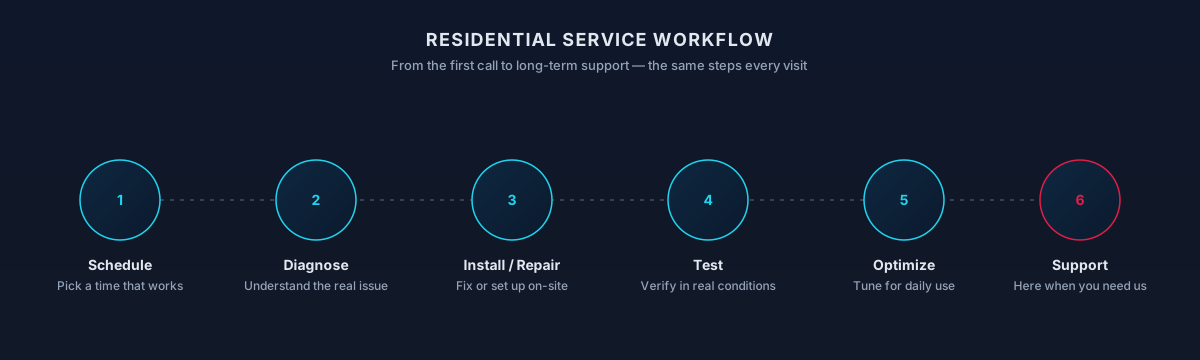
We start with a short conversation: when the problem started, what happened just before, whether anything new was installed, and how the machine is being used. That context often halves the diagnostic time.
Before opening anything, we run read-only checks — SMART, memory diagnostics, temperature and power readings, event log review. If the machine boots, we do this without touching your files.
We confirm what important data is on the drive and where copies exist. If nothing is backed up, that's where we start before any repair that touches storage or the operating system.
You get a plain-language explanation of what we found, what we'd recommend, and roughly how long it will take. Nothing beyond the initial diagnosis happens without a yes.
After the fix, we test the specific symptoms you originally reported — a stress run for overheating, extended boots for startup loops, a period of heavy multitasking for performance complaints — so the machine leaves proven, not hoped, to be repaired.
Repair across the operating systems most home users actually run today, including help understanding the Windows 11 hardware and TPM requirements on older PCs.
Dell, HP, Lenovo, ASUS, Acer, Microsoft Surface, iMacs, MacBooks, Mac minis, and custom desktops built from parts.
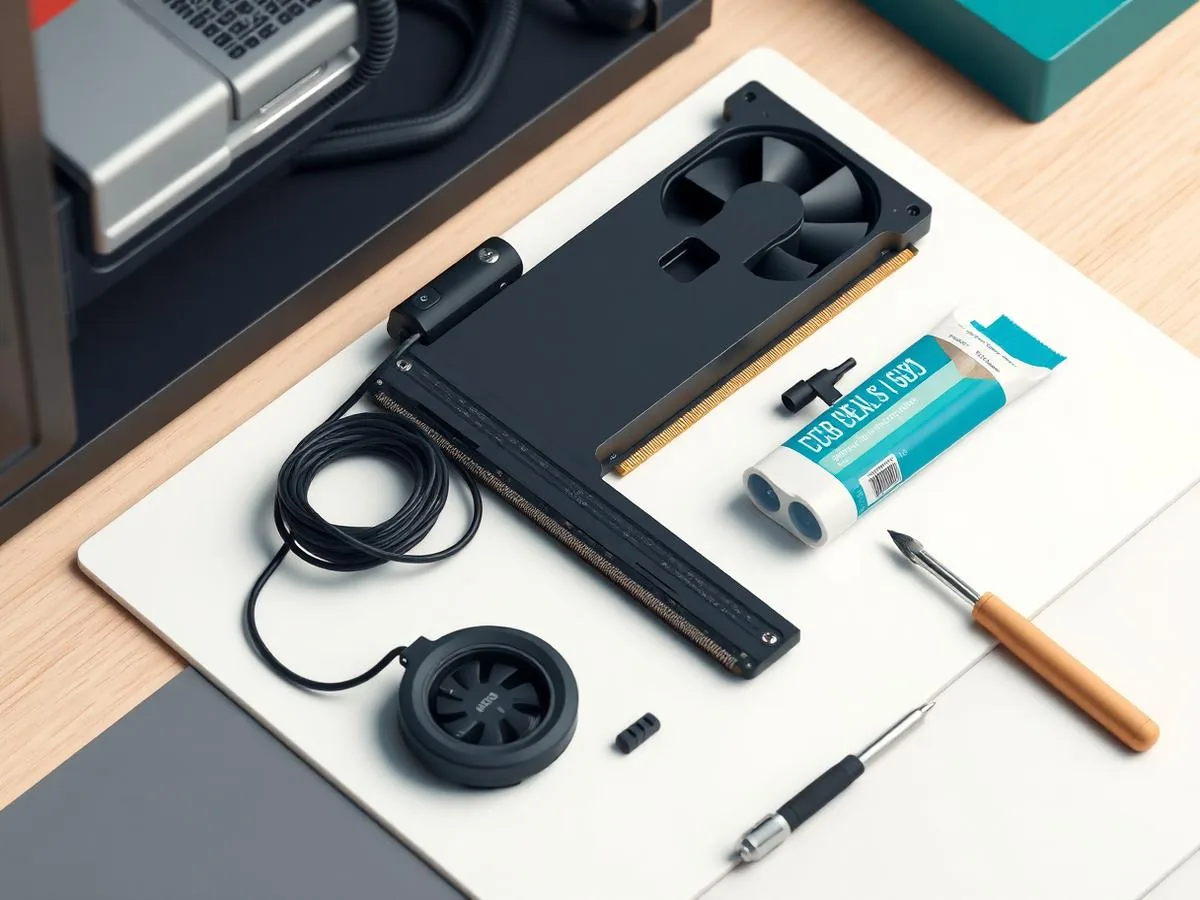
SATA SSD and NVMe SSD replacement, cloning from an existing drive so the machine boots back to the same desktop it had before.
RAM upgrades on both desktops and supported laptops, along with fan and power-supply replacements on desktops where they're the actual failure.
Windows startup repair, in-place upgrades, driver rollback, and clean installs — plus macOS reinstall from Recovery when that's the right choice.
Some jobs are safest done at home so you never have to unhook a desktop from a printer, monitors, and cables; others belong off-site where longer diagnostic runs are practical. We're clear about which is which.
Process
Walk through symptoms, timeline, and what the computer is used for.
Isolate hardware vs. software with targeted tests.
Explain what's happening and the realistic paths forward.
Perform the agreed work with your files protected.
Confirm the original symptoms are gone under normal use.
Plain-language notes on what changed and anything to watch.
Timing varies by household — this is a typical shape, not a promise.
Scope
Included
Outcomes That Matter
A repair aimed at the real cause tends to hold. Cleaning up the symptom without treating the cause is what leads to the same crash a month later.
Key Advantage
Doing the data check first — not last — means the family photos and tax records are safe before anyone reformats anything.
An SSD, more memory, a proper Windows tune-up, and a genuine thermal service can extend a laptop or desktop's useful life by years.
Enough information to decide whether to invest in the current machine or start looking at a new one — without being pushed either way.
Expected outcomes
You leave knowing what was wrong and why.
Fewer freezes, faster wake, calmer fans.
Repair, replace, or wait — with the trade-offs explained.
The result
A responsive machine that boots, opens apps, and handles the day-to-day again — without any guesswork about what was replaced or why.
Whether you're a homeowner, small business, or enterprise — we tailor our approach to your specific needs.
The household machine that everyone uses for homework, taxes, and printing — the one that has to work when the school portal opens or the FAFSA is due.
A laptop that has to survive video calls, Google Docs, and long research sessions on battery, and can't be down for a week during finals or a project deadline.
The five-year-old MacBook or the desktop built during the pandemic — hardware that isn't failing, just tired, and doesn't need to be replaced yet.
Anyone who has been told 'you need a new computer' but suspects there's more to the story.
We leverage industry-leading platforms and enterprise-grade equipment to deliver reliable, future-proof solutions.
Reading the drive's own self-reporting counters — reallocated sectors, pending sectors, wear-leveling — to catch failing storage before it takes files with it.
Extended RAM testing that catches intermittent module faults responsible for many blue-screen and kernel-panic patterns.
CPU and GPU temperature readings under idle and load so overheating is measured, not guessed at, before a cooling service is recommended.
In-place OS repair, startup repair, and clean installs from official recovery environments, with data staged externally first.
Reputable SATA and NVMe SSDs and manufacturer-compatible memory chosen to match the specific machine, not a generic 'universal' part.
Home computer repair across the Las Vegas Valley is a mix of in-home visits and secure remote sessions. Software issues, slowdowns, and account cleanup often start remotely so you don't wait for a technician to arrive. When a laptop won't boot, a desktop needs hardware swapped, or a machine can't get online at all, an in-home visit is the practical path.
We work with the everyday hardware households use — Windows laptops, iMacs, MacBooks, gaming rigs, and family desktops — and confirm availability for your specific address before scheduling.
Not sure if your address is covered? Check the full service areas map or contact us to confirm.
For situations where you want an honest read on what's wrong and what the options are before committing to any repair or replacement.
One clearly identified problem — a failing SSD, a swollen battery, dust-clogged fans — resolved without opening the door to unrelated 'while we're in there' work.
A combined upgrade path for a slow but otherwise sound machine: SSD or NVMe, RAM where the system supports it, OS cleanup, thermal service, and startup review.
Straight answers to what homeowners ask most. Not seeing yours? Contact us and we'll walk you through it.
Get in touch and we'll help you sort out the technology at home — from a single frustrating device to your whole network. Talk with a real home technology specialist and get straightforward answers.
Friendly, patient help — no jargon.
Not sure yet?
A quick check so you spend time on the service that matches what you're seeing.
Computer won't power on or boot
Frequent freezes, crashes, or blue screens
Unusually loud fans or overheating
Slow performance that hasn't improved after restarts
Mostly Wi-Fi drops or slow internet
See Wi-Fi OptimizationSuspected virus, pop-ups, or scam warnings
See Virus & Malware RemovalYou'd like a technician to look remotely first
See Remote Tech SupportBefore you reach out
None of these are required, but they usually speed things up when you contact us.
The next steps
A clear, low-pressure path from the first message to the work getting done.
Share a short description of the issue or project. Screenshots and device details help, but aren't required.
A technician looks at what you've described and asks any clarifying questions before recommending an approach.
You'll get a plain-language plan covering what we'd do, whether it's remote or in-home, and what's involved.
Once you're comfortable, we schedule the session. You stay informed at each step and can stop or adjust anytime.
What to expect
Before any repair, we describe what we're seeing, what we'd try, and what the trade-offs are. If the likely fix changes the plan you agreed to, we stop and check with you first.
When the computer is stable enough, we copy irreplaceable files (photos, documents, tax records) to an external drive or your cloud storage before any repair that could affect the disk. On failing hardware, this step may be limited or skipped so we don't make things worse.
Some boards, screens, and batteries are only serviceable by the manufacturer. Liquid damage and heavily worn drives may be past repair. When that's the case, we say so — and help you compare replacement vs. manufacturer service instead of guessing.
If a drive is clicking, unreadable, or physically damaged, the safest next step is a dedicated data-recovery workflow (or a clean-room lab), not a repair attempt. We'll stop, explain the options, and only continue with your go-ahead.
If a laptop or phone is owned or managed by your employer, we won't remove security controls, bypass MDM, or change work-account settings. We can help with the surrounding home setup — network, printer, monitor, workspace — and point you to your IT team for anything policy-controlled.
Not sure which one you need?
Both fix a computer that isn't behaving, but they start from different symptoms.
Choose this when the computer is broken, slow, or won't start for hardware or system reasons.
Covers
Not this page
Choose this when you see infection symptoms or suspect the computer is compromised.
Covers
Not this page
Choose this page if: The computer itself is the problem — hardware, boot, or performance.
Choose the other page if: Something on the computer is behaving maliciously or you clicked something you shouldn't have.
What to try next
If this isn't quite the right service — or you're wondering what usually comes next — these are the services homeowners most often need alongside or after this one.
If your computer is slow, popping up warnings, or acting strangely, a malware cleanup often solves the real problem before any repair is needed.
Explore Virus & Malware RemovalAfter a repair is the right time to set up automatic backups so the next hardware issue doesn't put your files at risk.
Explore Data Backup & RecoveryIf the repair isn't worth it, we can move your files, apps, and settings to a replacement computer and get it working the way you're used to.
Explore Device Setup & MigrationRelated residential services homeowners often pair with this one.
More in Home Computer Support
You might also need