




Inoconn — Smart IT Solutions for Modern Business
Residential Services/Data Backup & Recovery

Data Backup & Recovery

A backup plan you can trust, a careful look at missing files, and a clear answer about what a failing drive can and cannot give back.

For Las Vegas households worried about a laptop that is starting to make noise, photos that disappeared after a new phone, or a folder that vanished from a shared cloud drive. Inoconn sets up backups that actually run, checks that they can be restored, and takes a careful, honest look at data that is already missing or trapped on a struggling device.

Detailed Service Overview

Home data protection is usually built the wrong way around. Backups get thought about only after something has gone wrong — a laptop that will not boot, an external drive that Windows suddenly does not recognize, a folder of family photos that is nowhere on the new phone. By then the safe options are smaller, the risky options are more tempting, and the honest answers about what can be recovered are harder to hear.

Data Backup & Recovery is Inoconn's service for both sides of that problem. On the prevention side, we plan and set up backups for the computers, phones, and external drives that actually hold the household's important files — documents, tax records, photo libraries, school work, creative projects — and then verify that a real restore works, not just that the backup screen looks green. On the recovery side, we take a careful look at deleted, missing, or inaccessible data, explain what is realistically possible for that specific case, and stop making the situation worse.

This is deliberately narrower than Device Setup, which owns onboarding a new or replacement device and moving over data that is already available and healthy. It is also narrower than Computer Repair, which owns the hardware and operating-system side of a machine that will not run. When a drive is failing, both services often need to touch the same laptop, but the primary intent stays clear: Computer Repair is about the machine, Data Backup & Recovery is about the files.

This is also not a full network-attached storage project. A NAS can be one destination in a household backup plan, and we will mention it when it fits. Selecting, installing, and maintaining a multi-bay Synology or QNAP for shared household media, remote access, and multi-user permissions belongs on a dedicated NAS and personal-cloud service and is handled separately.

Inoconn Commitment

Every service we deliver is backed by our satisfaction guarantee and decades of combined IT expertise.

The setting

What's actually on the family computer

Photos, tax records, school work, small-business files — the irreplaceable things live on personal machines. Backup is really about that.

Home office desk with a personal laptop, framed family photos, and a stack of documents that need protecting

Critical Insight

Why sync is not the same as backup, and why the first hour matters most

Increased vulnerability
Higher costs over time
Reduced productivity

Why This Service Matters

The most common source of home data loss is not a dramatic hardware failure. It is a household that believed it had a backup and did not. OneDrive, iCloud, and Google Drive keep files synchronized across devices, which is not the same as protecting them. A file deleted or corrupted on one device is deleted or corrupted on the others as soon as sync runs. Version history and cloud trash help for a short window, then quietly age out. A real backup is a separate copy that a bad day cannot immediately reach.

The other quiet source of loss is a drive that is on its way out. External hard drives that are no longer recognized, internal drives that click or stall, SSDs that suddenly report tiny sizes — these are all warnings. Every additional power-on, every attempted repair, every recovery tool installed onto the affected drive can make the situation worse. The safest thing a homeowner can do in that first hour is often to stop, disconnect, and get an honest assessment before trying anything else.

Recovery is also not one thing. Software recovery of accidentally deleted files from a healthy drive is very different from imaging a failing drive to a healthy one, which is different again from physical work on a drive that has mechanical damage. We are transparent about which category a case falls into, what we can attempt in a home or office environment, and when the right answer is to stop and escalate to a specialist recovery lab instead of continuing to try.

How it looks

Backups you don't have to think about

We set up the drives, the schedule, and the second copy — and then we test that a real file actually comes back before we call it done.

Home technician setting up an external backup drive next to a home laptop

Problems → Solutions

Challenges We Eliminate

No Real Backup, Just Cloud Sync

The household believes OneDrive, iCloud, or Google Drive is 'backing everything up,' but a deleted or corrupted file on one device is immediately deleted or corrupted everywhere. There is no independent copy to fall back on.

Backup Assessment

We walk through the devices in the household, the accounts they use, and what is actually being protected today, then flag the gaps — usually devices with no backup at all, or 'backups' that are really just synchronized folders.

External Drive No Longer Recognized

A backup drive or photo archive that used to mount cleanly now shows as unallocated, asks to be formatted, or is invisible altogether. Every additional plug-in risks making the situation worse.

Local and Cloud Backup Setup

We configure a backup plan that combines an on-site copy (an external drive, a household backup drive, or a NAS as one destination) with a cloud service, sized to the amount of data that genuinely needs protection.

Laptop That Will Not Boot but Holds Important Files

The computer will not start, but tax returns, photos, or a work project are only on that machine. The priority is preserving the files, not necessarily saving the laptop.

Restore Verification

We do not consider a backup done until we have restored a real file from it. Backups that never restore are not backups; they are green checkmarks with nothing behind them.

Files Vanished After a Phone or Device Change

Photos, contacts, or documents that were on the old phone are not on the new one. Often a sync scope, account, or storage-space problem rather than true loss.

Careful File Restoration

Where files have been deleted, hidden, or moved by a sync mishap on a healthy drive, we work through cloud trash, version history, and local recovery tools without installing anything onto the affected volume.

Folder Deleted or Emptied From the Recycle Bin

Something important was deleted, and continued use of the computer is quietly overwriting the space that would have made recovery possible.

Failing-Drive Assessment

For drives that click, stall, or disappear, we do a limited, cautious read-only assessment where it is safe to do so, and give an honest recommendation — including when to stop and send the drive to a specialist recovery lab.

Before you call

Safe things to try first

  1. Stop using a clicking or grinding drive immediately.
  2. Don't format or 'repair' a drive you want data from.
  3. Power off and unplug external drives showing errors.
  4. Write down the folders that matter most — photos, docs, projects.
  5. Check whether copies already exist in iCloud, OneDrive, or Google Drive.
  6. Note when the problem started and what changed just before.

If any of these feel uncertain, skip it — we'll handle it.

Homeowner looking worried at their laptop after realizing files may have been lost
The moment nobody wants — and the one everyone puts off preparing for.

Step by Step

Our Process

1

Listen and Stabilize

We ask what happened, when, and what has already been tried. If a drive is behaving badly, the first instruction is often to stop using it — most damage happens in the panic hour before the assessment.

2

Assess the Situation

For prevention, we inventory devices, accounts, and current backups. For recovery, we look at the specific device, the failure symptoms, and whether another copy of the data may already exist somewhere the homeowner has forgotten.

3

Recommend and Explain Limits

We describe what is realistically possible for this case, what is not, and what the safest next step is. That includes being clear when a case belongs in a specialist recovery lab rather than in the home.

4

Configure or Recover

For backup work, we set up local and cloud destinations, schedules, and encryption where it applies. For recovery, we work carefully from a read-only stance where possible, imaging the affected drive to a healthy one before any further attempts.

5

Verify and Document

We restore a real file from every backup we configure and leave a short written summary of where backups live, what they cover, and how to restore. For recovery cases, we document what was retrieved, what was not, and how to protect against a repeat.

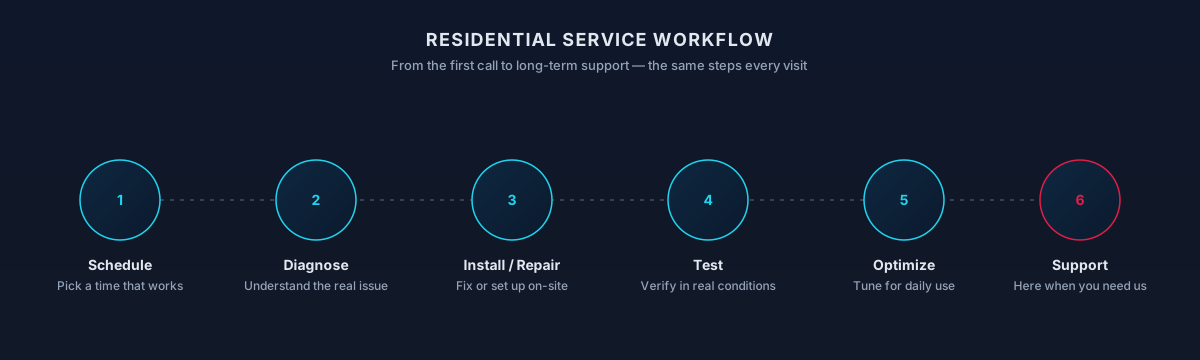
Residential service workflow — schedule, diagnose, install or repair, test, optimize, and support
The same six steps every visit — from the first call through the follow-up support.
What You Get

What's Included

01

Cloud Backup Configuration

Setup and account cleanup for OneDrive, iCloud, and Google Drive so that the folders you actually care about are backed up, not just synced from wherever they happen to live.

02

Local Backup with External Drives

Configuring Windows File History or Windows Backup and macOS Time Machine to a dedicated external drive, with a schedule that runs without needing to be remembered.

03

Photo Library Protection

Reviewing where family photos actually live across phones, computers, and cloud libraries, and building a plan that keeps at least one independent copy off the primary device.

04

Restore Testing

Restoring an actual file from every backup we configure, so the household knows the backup is real before it is ever needed.

05

Deleted-File Recovery on Healthy Drives

Careful attempts to recover accidentally deleted files from a drive that is still working, using tools that read from the affected volume rather than write to it.

06

Failing-Drive Imaging

Where it is safe and appropriate, imaging a struggling drive to a healthy destination first, so all further recovery attempts happen against the copy — not the original.

Process

How the visit typically goes

  1. Assess

    What's missing, from where, and what state the media is in.

  2. Protect the source

    Avoid actions that reduce recovery chances.

  3. Recover what's recoverable

    Prioritize by what matters most to you.

  4. Verify

    Open recovered files to confirm they're usable.

  5. Set up ongoing backup

    So this doesn't happen again the same way.

Timing varies by household — this is a typical shape, not a promise.

Scope

What a visit may include

Included

  • Recovery triage — Realistic view of what may or may not be recoverable.
  • Cloud backup setup — iCloud, OneDrive, or Google Drive tuned for your files.
  • Local backup — Time Machine or File History to an external drive.
  • Photo library protection — The one loss most families regret most.

Outcomes That Matter

Benefits & Results

A Backup That Has Actually Been Restored From

You have seen a file come back from your backup at least once, so it is not a leap of faith the first time you truly need it.

Key Advantage

Honest Boundaries About Recovery

You get a clear answer about what is realistically possible for your specific case, including when a specialist recovery lab is the right escalation.

Fewer Panic Decisions

You know when to stop, unplug, and wait — before extra restarts, extra recovery tools, or a well-meaning format quietly makes things unrecoverable.

A Plan That Survives the Next Device

The next laptop or phone is added to the same plan, rather than becoming another isolated island of unprotected files.

Expected outcomes

What homeowners usually notice

  • Peace of mind

    You know where your important files live.

  • A real recovery plan

    Not just 'it's in the cloud somewhere.'

  • A backup habit that sticks

    Automatic, not something to remember.

The result

The stuff that matters is still there

Not just backed up — proven recoverable. When something does go wrong, you get your files back, not a shrug.

Homeowner smiling with relief while looking at recovered family photos on a laptop
Who It's For

Who This Service Is For

Whether you're a homeowner, small business, or enterprise — we tailor our approach to your specific needs.

Families With Years of Photos in One Place

Households whose photo library has quietly grown across phones and computers, and who want to know that a single device failure will not erase the last decade.

Homeowners Whose Drive Is Making Noise

You have noticed clicking, stalling, or disconnects and want an honest look before things get worse.

Homes Relying on Cloud Sync as 'Backup'

OneDrive, iCloud, or Google Drive is doing the job of a backup in your head, and you want a real independent copy in case a synced deletion happens.

Students, Freelancers, and Remote Workers

People whose income or grades depend on files on one laptop, and who want reasonable protection without a corporate IT department.

Snowbirds and Second-Home Owners

Households that split time between Las Vegas and elsewhere and want backups that continue to run in either location.

Technology & Tools

We leverage industry-leading platforms and enterprise-grade equipment to deliver reliable, future-proof solutions.

Windows File History and Windows Backup
macOS Time Machine
OneDrive, iCloud, and Google Drive
External Hard Drives and SSDs
SMART Drive Indicators
Encryption and Recovery Keys
External drive connected to a home computer during a residential data backup workflow
A local external drive paired with an off-site copy — the pattern we recommend for household data.
Local Availability

In-Home and Remote Support Across the Valley

Backup setup is usually a mix of remote configuration (cloud accounts, sync tools) and in-home work to attach and verify local drives. Recovery is different — when a drive is failing, a laptop won't boot, or files have already been lost, we start with on-site triage across the Las Vegas Valley to avoid making the situation worse.

Some recoveries require specialist escalation with a data-recovery lab. We are honest up front about what can be recovered in-home versus what needs to go to a lab, and we do not guarantee recovery of any specific file.

Local Conditions Worth Knowing

  • Stop using a drive that is making unusual noises or throwing read errors — continued use can make recovery harder.
  • External drives should not be traveled with or transported while a recovery is in progress.
  • Photos and documents scattered across phones, laptops, and cloud accounts benefit from a documented backup plan, not just a single tool.
Options

Service Tiers & Options

1

Backup Setup for a Single Computer

One laptop or desktop, one clear backup plan — usually a combination of an external drive and a cloud destination, with restore testing.

Includes consultation & support
Most Popular
2

Whole-Household Backup Plan

Multiple computers, phones, and external drives in the same house brought under one plan, with shared conventions for where files should live.

Includes consultation & support
3

Recovery Assessment

A focused look at a specific problem — deleted folder, missing photos, failing drive — with a clear recommendation about what can be attempted safely and what should be escalated.

Includes consultation & support
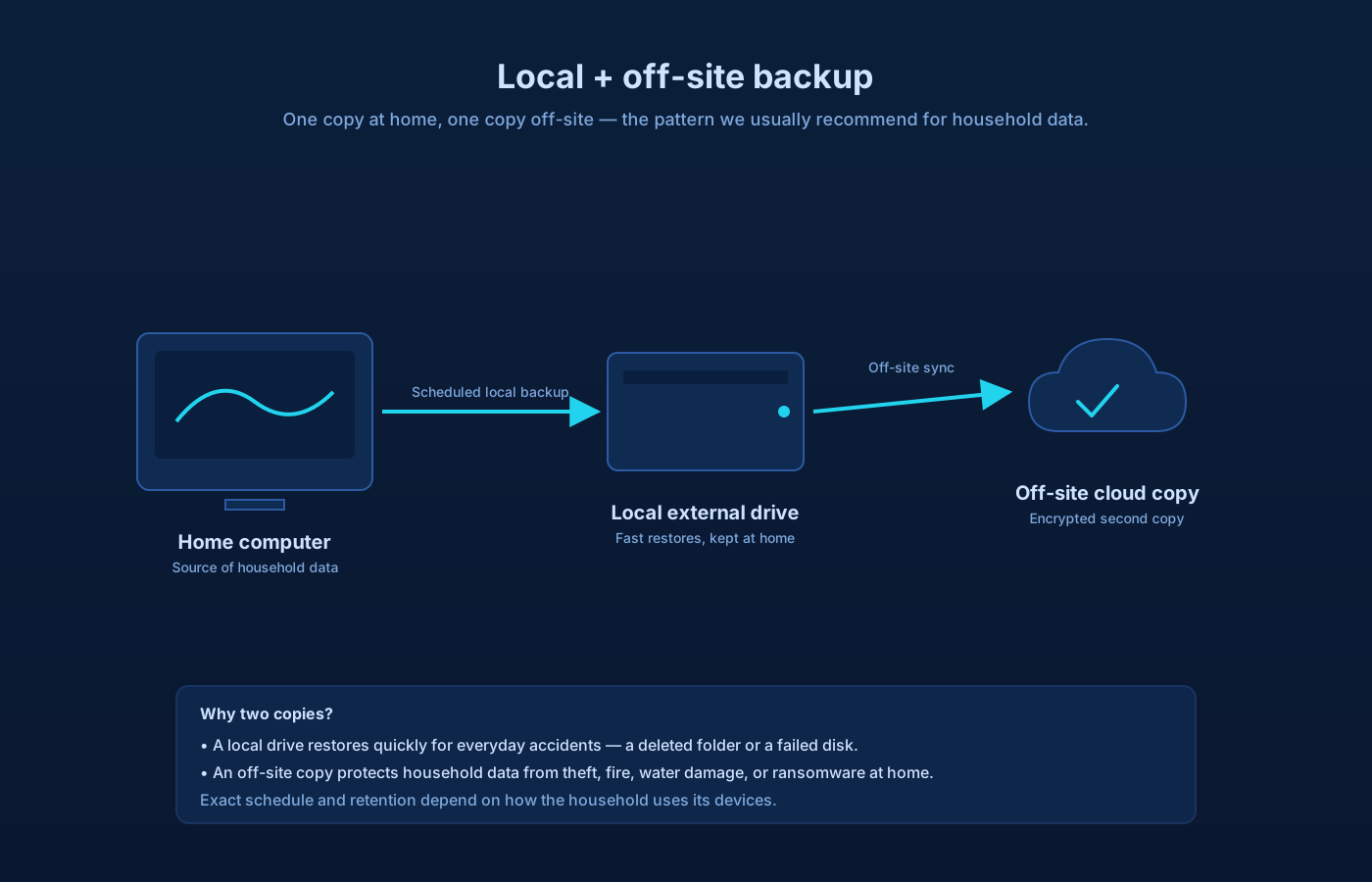
Diagram showing a local external drive backup paired with a secondary cloud copy for household data
A local backup paired with an off-site copy — the pattern we usually recommend for household data.

Frequently Asked Questions

Straight answers to what homeowners ask most. Not seeing yours? Contact us and we'll walk you through it.

Backup planning

Recovery triage & limits

Home Technology Help

Need help with Data Backup & Recovery?

Get in touch and we'll help you sort out the technology at home — from a single frustrating device to your whole network. Talk with a real home technology specialist and get straightforward answers.

Friendly, patient help — no jargon.

Before you reach out

Before you contact us

If you're currently losing data, stop using the affected device and reach out. Otherwise, this list helps us plan a backup strategy.

  • What you most want protected (photos, documents, projects)
  • Where that data lives today (devices, phones, cloud accounts)
  • Any external drives or cloud storage you already use
  • Whether you've had a data loss event recently

If a drive is making unusual noises or was dropped, please leave it powered off until we can look at it.

The next steps

What to expect when you reach out

A clear, low-pressure path from the first message to the work getting done.

  1. Tell us what's happening

    Share a short description of the issue or project. Screenshots and device details help, but aren't required.

  2. We review your setup

    A technician looks at what you've described and asks any clarifying questions before recommending an approach.

  3. Agree on next steps

    You'll get a plain-language plan covering what we'd do, whether it's remote or in-home, and what's involved.

  4. The work begins

    Once you're comfortable, we schedule the session. You stay informed at each step and can stop or adjust anytime.

What to expect

How we work in your home

If you think the drive is failing, stop using it

The single biggest thing you can do for a failing drive is turn it off. Reboots, repair utilities, and 'just one more try' often turn a recoverable problem into an unrecoverable one. Power it off and call us before doing anything else.

Recovery is never guaranteed

Data recovery outcomes depend on what failed and how the drive has been treated since. We're honest about odds before we start, and we don't charge as if a recovery is certain when it isn't.

When a failing drive needs a specialist

Clicking, grinding, drives the computer doesn't see, or drives that were physically dropped are candidates for a data-recovery lab rather than software tools. We'll say so, help you package it correctly, and coordinate the handoff.

Encryption keys we can't work around

If a drive is encrypted (BitLocker, FileVault, work-issued encryption) and the key or recovery password is lost, no one — us, the recovery lab, or the manufacturer — can decrypt it. Recording that key somewhere safe now is the single most important backup step.

Clean-room and forensic recovery limits

Clean-room, chip-off, and forensic recovery are specialized services with their own cost and turnaround. They're the right tool for physically damaged media, but not for a slow computer or an accidental delete on a healthy drive.

What to try next

Recommended next services

If this isn't quite the right service — or you're wondering what usually comes next — these are the services homeowners most often need alongside or after this one.

Related Service

Computer Repair

If the reason you're thinking about backups is a computer that's failing or acting up, our repair service can address the underlying hardware.

Explore Computer Repair
Next Step

Device Setup & Migration

Moving to a new computer, phone, or tablet is the natural moment to migrate files cleanly and start backups on the new device.

Explore Device Setup & Migration
Preventive

Virus & Malware Removal

Malware — especially ransomware — is one of the top reasons households lose files. Cleanup plus backups is the pair that actually protects you.

Explore Virus & Malware Removal

Related residential services homeowners often pair with this one.