
This page fits if you're seeing:
Unexpected pop-ups, browser redirects, or new toolbars
Fake antivirus or 'call this number' warnings
Programs opening or running you didn't install
Accounts sending messages you didn't write
Cleaning Up After Pop-Ups, Scam Sites, and Compromised Home Computers
If your browser has been hijacked, a 'call this number' pop-up won't close, or an unknown program is running on the family laptop, the safest move is to stop using the machine and get it looked at by someone who does this every week. We remove what's actually there and tell you honestly what the incident may have exposed.
Malware on a home computer rarely looks like the dramatic movie version. Most of the time it looks like an aggressive pop-up you can't dismiss, a browser that opens to a search engine you've never heard of, a Chrome or Edge extension you don't remember installing, or a small, quiet program that appears in Task Manager and won't uninstall the normal way.
Inoconn's home virus and malware removal is a cleanup and containment service, not a general tune-up. The goal is straightforward: identify what is on the machine, remove it safely without collateral damage to your files, restore the settings the infection changed, and help you understand which accounts and passwords might have been exposed while the machine was compromised.
The service also covers scam-driven incidents that don't always involve traditional malware — the fake 'Microsoft Support' pop-up someone called by mistake, the 'refund reversal' scam where a caller was walked into their own bank account, the browser lock screen that demanded a gift card. These have their own cleanup steps around account recovery, remote-access tools left behind, and financial notifications, and we treat them differently from a run-of-the-mill adware infection.
We're direct about what cleanup can and cannot promise. Removal restores the computer to a known-good state. It does not undo what has already been sent to the person who wrote the malware. If passwords were on the machine while it was infected, they need to be changed; if a scammer had remote access, the honest assumption is that anything shown on screen during that session was seen.
Inoconn Commitment
Every service we deliver is backed by our satisfaction guarantee and decades of combined IT expertise.
The setting
Email, banking, tax records, school portals — a lot passes through one machine. That's what we're really protecting when we clean it up.

Critical Insight
Home antivirus tools are useful, but they're usually the last line — not the first. By the time a modern threat is on the machine, it has often disabled parts of the built-in protection, hidden its files in system folders, and scheduled itself to come back after a reboot. A single scan run from inside the infected system frequently misses the pieces designed to survive it.
The other side of a compromise is the part scans do not touch: accounts. If a browser password store was open on the machine, or the family email account is signed in and remembered, credentials may be at risk even after the software is removed. A proper cleanup talks about that side as clearly as the technical side.
Then there is the human side. Scam pop-ups, fake antivirus 'renewal' calls, and 'your refund was sent twice' schemes are designed to panic people into moving fast. Slowing down, disconnecting the machine, and getting an experienced set of eyes on it prevents the next mistake — which is almost always more expensive than the first one.
How it looks
Removing the infection is only half the job. We review browsers, sign-ins, and saved passwords so the same intrusion path doesn't reopen the next day.
Problems → Solutions
You type a search in Chrome or Edge and end up on a site you didn't ask for, or your homepage keeps changing back to something unfamiliar. Classic signs of a browser hijacker or a malicious extension.
Before scanning anything, we disconnect the machine from your Wi-Fi so an active infection can't reach out or spread to other devices in the house. On ransomware or active-scam calls, isolation is step one, not step five.
A full-screen warning with alarms telling you to call a support number, download 'PC cleaner' software, or not to turn off the computer. Almost always a scam page, sometimes backed by a small program that reopens the pop-up.
Where the infection allows, we scan the drive from a clean environment rather than only from within the infected Windows or macOS install, and cross-check results with more than one reputable engine so a single tool's blind spot doesn't become ours.
You called the number, someone connected using AnyDesk, UltraViewer, or a similar tool, they 'showed you' problems on your machine, and asked for payment or bank access. Even if you stopped partway, the remote-access tool and the trust relationship are still on the machine.
We remove scheduled tasks, startup entries, browser extensions, and services the infection uses to reinstall itself — the part automated scans most often leave behind.
Documents and photos suddenly have strange extensions, or a ransom note has appeared on the desktop. This is a serious incident that needs the machine isolated from your network before anything else.
Reset of hijacked search providers and homepages, removal of unwanted extensions, and a review of proxy and DNS settings that some threats quietly change.
Task Manager shows processes you don't recognize, the browser has extensions no one in the house installed, or the machine feels 'watched' — slow at odd moments, hard drive active with nothing open.
A plain-language list of what to change and in what order — starting with the email account that resets everything else, then banking, then anything with a saved password on the affected machine — plus help enabling multi-factor authentication where it isn't already on.
Emails from Google, Microsoft, or your bank about a sign-in from an unfamiliar device, or friends receiving strange messages from your address. Often the first outside sign that credentials were captured from the machine.
Removal of AnyDesk, UltraViewer, Supremo, TeamViewer, and similar tools left behind by a scammer, plus a check for accounts they may have created during the session.
Sound familiar?
Before you call
If any of these feel uncertain, skip it — we'll handle it.

Step by Step
The first instruction on the phone is usually 'disconnect the Wi-Fi and stop clicking.' For active scams and ransomware, this alone often prevents the worst outcome.
We ask what you saw, what you clicked, whether anyone connected remotely, whether any payments were entered, and whether you're already seeing account alerts. That decides how we sequence the cleanup.
We look at what is actually running on the machine, what has persistence set up, and what changed recently in the browser and startup items — before running any removal that could destroy evidence of what happened.
Threats are removed using appropriate tools for the type of infection, hijacked settings are restored, and unwanted programs and extensions are uninstalled cleanly rather than just disabled.
Once cleanup looks complete, we run a fresh, second-opinion scan and check the browser, startup, and scheduled tasks manually to confirm nothing repopulated.
We finish with a short summary: what we found, which accounts to prioritize for password changes, where to enable multi-factor authentication, and what a realistic recovery plan looks like if money was actually moved.
Handling for incidents that started with a fake support call rather than a random infection — including the remote-access tools scammers commonly install.
Isolation of the affected machine, identification of the ransomware family where possible, and honest guidance on realistic recovery paths from backups.
Chrome, Edge, Firefox, and Safari — extensions removed, search and homepage restored, cached credentials reviewed, and settings walked back to a sane baseline.
A pass through Task Scheduler, startup folders, services, and login items so removed threats don't quietly reinstall on the next reboot.
Cleanup for both platforms, with attention to the differences — Windows has more surface area for infections; Mac scams lean heavily on browser pop-ups and 'MacKeeper'-style scareware.
A short follow-up session at a set interval to confirm nothing has returned and that the account changes stuck.
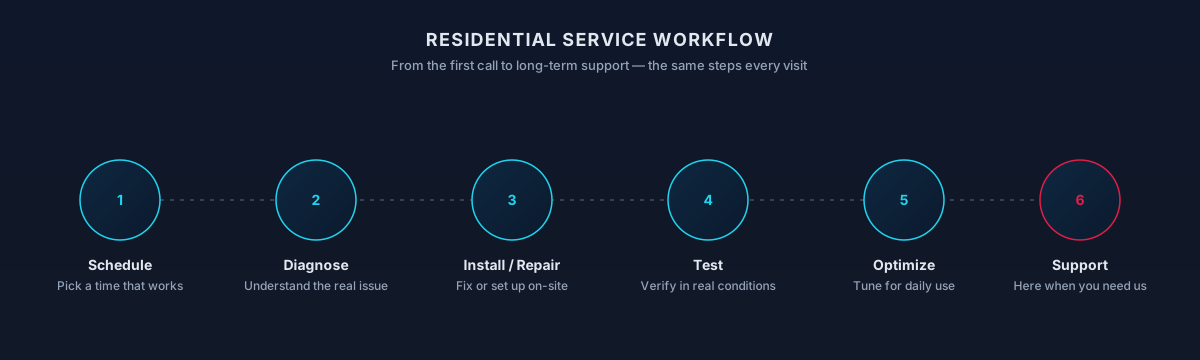
Process
Confirm what's happening and how far it's spread.
Take the device offline while we work.
Multi-engine review beyond a single antivirus.
Remove threats, persistence, and known nuisance apps.
Turn on the protections that were off or bypassed.
Walk through which passwords and sessions to rotate.
Timing varies by household — this is a typical shape, not a promise.
Outcomes That Matter
Once cleanup is verified, the family laptop is back to a state where logging into email or banking on it is a normal action, not a leap of faith.
Key Advantage
Part of the service is teaching the household to recognize what a real Windows or macOS message looks like versus a browser pop-up designed to look like one.
Instead of a vague 'change your passwords,' a specific, ordered list of what to change and where multi-factor authentication is worth turning on.
Cleaning up the ways an infection persisted — not just the visible pieces — is what makes 'the same thing keeps coming back' actually stop coming back.
Expected outcomes
Use email and banking without second-guessing every click.
Clear picture of what to rotate and where.
Basic protections put back in place.
The result
Clean sign-ins, clean browsers, and a short list of things to keep an eye on — so the next time something looks off, you know exactly what to check.

Whether you're a homeowner, small business, or enterprise — we tailor our approach to your specific needs.
Especially useful when the pop-up won't close, the machine is speaking, or the browser is in a full-screen 'call this number now' state.
The cleanup isn't about blame. It's about getting the remote-access tool off, understanding what may have been seen, and making sure the accounts most likely to be exploited are protected.
We can help you think clearly about backups, what's genuinely recoverable, and what paths make things worse — starting with 'don't pay yet, and don't wipe yet.'
You saw something odd, closed the tab, and now you're not sure. A one-time review is often enough to confirm the machine is clean or catch something quietly left behind.
We leverage industry-leading platforms and enterprise-grade equipment to deliver reliable, future-proof solutions.
Multiple well-known scanners used together for coverage, rather than relying on a single product to catch everything.
Scanning the drive from outside the infected OS when the situation calls for it, so threats that block scanners from running inside Windows have nowhere to hide.
The built-in protection on Windows 10 and 11 — properly configured and re-enabled where infections have quietly turned it off.
Chrome, Edge, Firefox, and Safari extensions and settings reviewed, with tracker and pop-up controls set to sensible defaults for a home user.
Help choosing and setting up a reputable password manager so post-cleanup password changes don't collapse into 'we'll write them on a sticky note.'
Turning on the extra sign-in step on email, banking, and social accounts, using an authenticator app rather than SMS where possible.

Virus and malware cleanup for households across the valley usually starts remotely. Account lockdowns, password rotations, browser cleanups, and scans can begin the same session — no visit required when the machine can still reach the internet.
In-home support becomes the right call when a computer won't boot, when ransomware has locked files, or when the router itself is showing signs of compromise. We confirm whether remote or on-site fits your situation before we begin.
Not sure if your address is covered? Check the full service areas map or contact us to confirm.
For adware, browser hijackers, and other everyday infections that aren't tied to a scam call or active ransomware.
Focused on cleanup after a tech-support scam or remote-access incident: removing the tool, tightening the accounts most likely to be reused, and coordinating on what to tell your bank if payments were involved.
Isolation, identification, honest assessment of backup-based recovery options, and coordination with any home backup service already in place. No promise of decryption where none exists.
Straight answers to what homeowners ask most. Not seeing yours? Contact us and we'll walk you through it.
Get in touch and we'll help you sort out the technology at home — from a single frustrating device to your whole network. Talk with a real home technology specialist and get straightforward answers.
Friendly, patient help — no jargon.
Not sure yet?
Malware symptoms overlap with other issues. A quick check to make sure.
Unexpected pop-ups, browser redirects, or new toolbars
Fake antivirus or 'call this number' warnings
Programs opening or running you didn't install
Accounts sending messages you didn't write
Computer is just slow with no other symptoms
See Computer RepairYou'd like ongoing help across several devices
See Home IT SupportBefore you reach out
A short list of things worth checking so we can help safely.
If you're seeing a scam pop-up telling you to call a number, don't call it — reach out to us instead.
The next steps
A clear, low-pressure path from the first message to the work getting done.
Share a short description of the issue or project. Screenshots and device details help, but aren't required.
A technician looks at what you've described and asks any clarifying questions before recommending an approach.
You'll get a plain-language plan covering what we'd do, whether it's remote or in-home, and what's involved.
Once you're comfortable, we schedule the session. You stay informed at each step and can stop or adjust anytime.
What to expect
After a real infection or account compromise, passwords for email, banking, and shopping accounts should be changed from a known-clean device. We walk through which accounts to prioritize and help you turn on two-factor where it isn't already on.
Your accounts, files, and photos stay yours. We only sign in where you explicitly ask, we don't copy personal data off your devices, and any temporary credentials created during service are handed back to you at the end.
We do not pay ransoms, promise decryption of ransomware, or claim to reverse identity theft. What we can do is contain the incident, clean the device, preserve evidence, and help you plan the recovery steps that belong with your bank, employer, or law enforcement.
If money has moved, tax filings are involved, or someone has your Social Security number, the right first calls are your financial institutions and, when appropriate, IC3 / local law enforcement. We can help you gather what you'll need for those conversations.
If a laptop or phone is owned or managed by your employer, we won't remove security controls, bypass MDM, or change work-account settings. We can help with the surrounding home setup — network, printer, monitor, workspace — and point you to your IT team for anything policy-controlled.
Not sure which one you need?
Both fix a computer that isn't behaving, but they start from different symptoms.
Choose this when you see infection symptoms or suspect the computer is compromised.
Covers
Not this page
Choose this when the computer is broken, slow, or won't start for hardware or system reasons.
Covers
Not this page
Choose this page if: Something on the computer is behaving maliciously or you clicked something you shouldn't have.
Choose the other page if: The computer itself is the problem — hardware, boot, or performance.
What to try next
If this isn't quite the right service — or you're wondering what usually comes next — these are the services homeowners most often need alongside or after this one.
If the slowness or errors stick around after cleanup, the underlying issue may be hardware — a repair diagnostic is the next place to look.
Explore Computer RepairA working backup is your best protection against the next infection, especially against ransomware that targets home computers.
Explore Data Backup & RecoveryOngoing support keeps updates, browsers, and security tools tuned so the same infection is less likely to come back.
Explore Home IT SupportRelated residential services homeowners often pair with this one.
More in Home Computer Support
You might also need