

Inoconn — Smart IT Solutions for Modern Business
Residential Services/Device Setup & Migration

Device Setup & Migration

A defined onboarding for a specific new device — accounts, files, apps, and a careful transition from what came before.

For homeowners across Las Vegas, Henderson, Summerlin, North Las Vegas, Spring Valley, and Enterprise who just bought a new computer, phone, or tablet — or are handing one down to a student, a parent, or a family member — Inoconn takes the new device from the box to a usable state. Accounts signed in, files and photos moved over where they can be, essential apps installed, backup configured, and the old device prepared safely for reuse, trade-in, or disposal.

Detailed Service Overview

A new device sounds simple until it is sitting on the counter. There is an account to create or sign into, a system update to sit through, files and photos to bring across from something older, apps to reinstall, passwords that no one can find, a printer to reconnect, a webcam to test, and a decision to make about what to do with the device it is replacing. Individually these are small steps. Together they turn a Saturday morning into a lost weekend, and important things — a photo library, a two-factor authenticator, a household license — get skipped in the rush.

Device Setup & Migration is Inoconn's onboarding service for a specific new or replacement device. It is scoped tightly: one computer, one phone, one tablet, or a small group of related devices for the same person, taken from unboxed to ready-to-use. We create or sign into the right accounts, migrate the files and photos that can be moved, install and configure the applications the household actually uses, connect peripherals like a printer or an external drive, configure backup so this device is protected going forward, and prepare the old device so nothing personal is left on it.

This is not Home IT Support. Home IT Support is for households with several unrelated problems across many devices — a slow computer, a printer, a smart speaker, a family member's laptop — where the value is triage and general help. Device Setup is narrower and more finished: it starts with a specific new device and ends when that device works the way its owner expects. It is also not Computer Repair — the device is assumed to power on and function; if it does not, that is diagnosed as a repair, not an onboarding.

We are honest about migration. Some things move cleanly between devices — files, photos, browser bookmarks, mail accounts, most modern applications. Some things do not — legacy applications tied to an operating system that no longer exists, software licenses that were never registered, passwords that were only stored in a browser on a device that no longer starts. We say up front what can and cannot come across, and we do not promise recovery of data that was never backed up. That is a different service.

Inoconn Commitment

Every service we deliver is backed by our satisfaction guarantee and decades of combined IT expertise.

The setting

New device day, without the dread

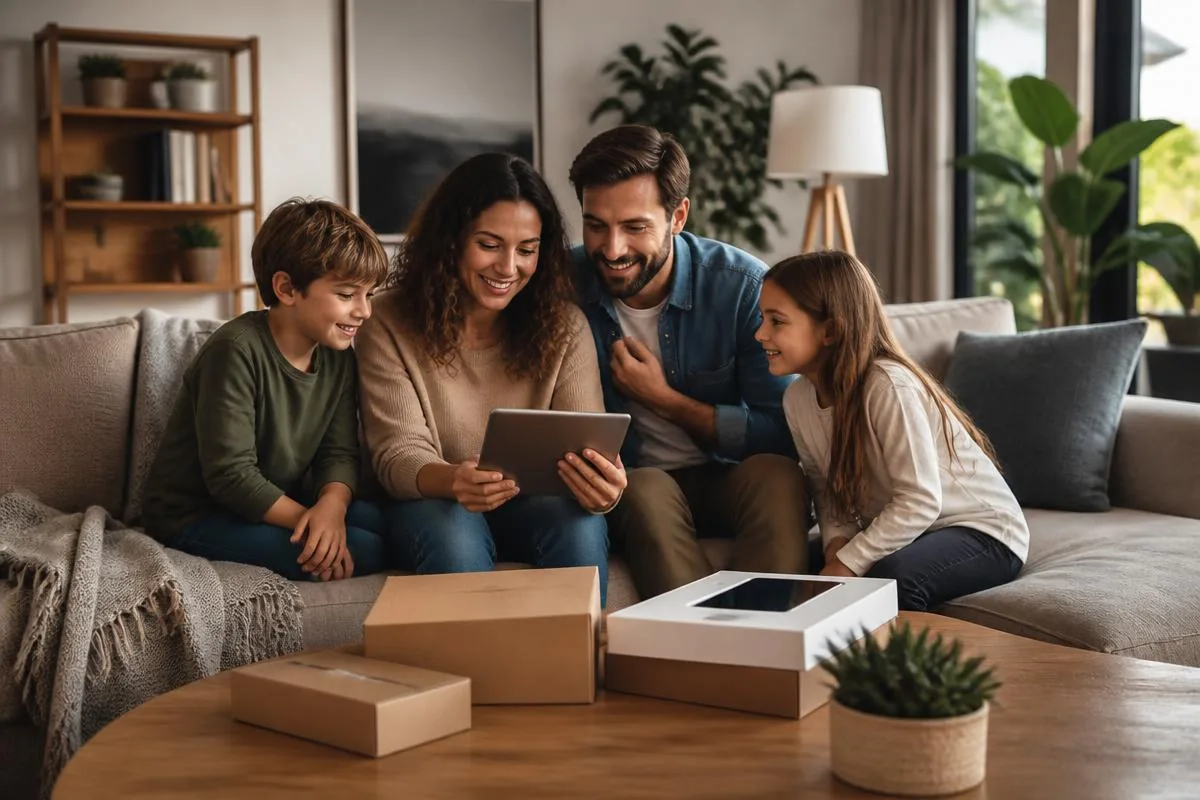
A new laptop, phone, or tablet should feel exciting — not like a Saturday lost to sign-ins, transfers, and forgotten passwords.

Brand-new laptop and smartphone still in unopened boxes on a home dining table, ready for setup

Critical Insight

Why New-Device Onboarding Is Where Households Quietly Lose Things

Increased vulnerability
Higher costs over time
Reduced productivity

Why This Service Matters

Most people set up a new device once every few years, which means the process is unfamiliar every time. The manufacturers' migration tools have all changed since the last time, the account layout is different, and the specific combination of platforms — old Windows to new Mac, old iPhone to new Android, old iPad handed down to a child — rarely matches whatever tutorial is on the screen. The result is a lot of small decisions made under time pressure, and a lot of small losses: a photo album that never came over, an authenticator app that stayed on the old phone, a household software license nobody can find again.

The stakes are also uneven. Losing a shortcut is annoying. Losing access to a two-factor authenticator app that was only installed on the old phone can lock a household out of email, banking, and cloud storage for days. A migration that treats every item as equally important misses that difference. A proper onboarding starts with the accounts and the recovery paths, then handles the files, then handles the applications, and only then wipes anything on the old device.

The other quiet problem is the old device itself. It often has years of personal data on it — signed-in accounts, saved passwords, photos, tax documents, browser history — and it usually ends up in a drawer, or handed to a relative, or traded in, without ever being properly signed out or erased. Activation locks, family-sharing links, and manufacturer accounts that were never cleared can also make the old device unusable for the next person. A defined onboarding treats the old device as part of the job, not an afterthought.

How it looks

New device, familiar setup

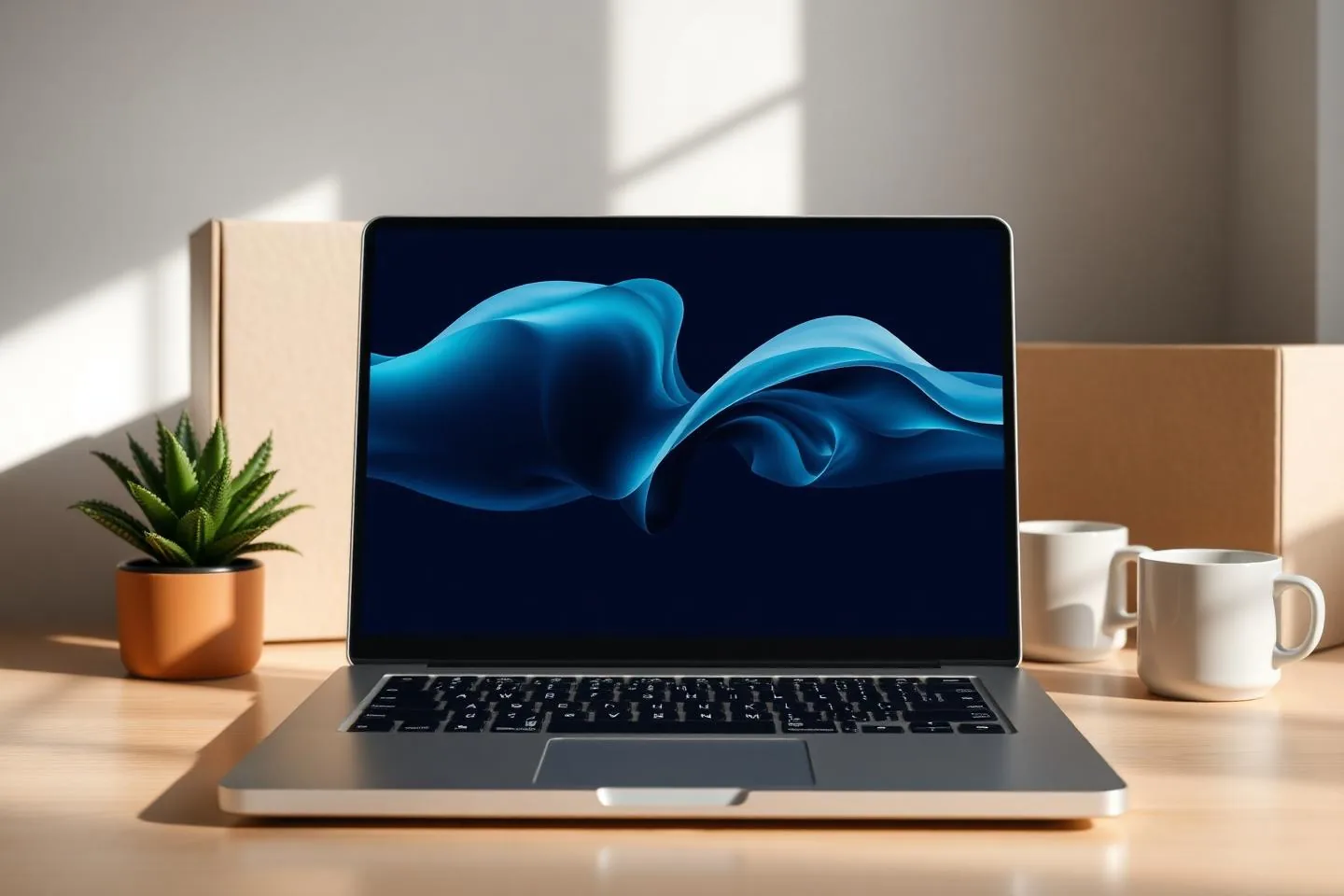
Accounts, files, and preferences move over cleanly so the new machine feels like yours from the first day — not weeks later.

New laptop being configured on a home desk during a residential device setup visit

Problems → Solutions

Challenges We Eliminate

A New Computer That Sat in the Box for a Week

The box is open, the setup wizard is asking questions the household is not sure how to answer, and the old laptop still has all the files on it.

Accounts and Recovery First

Before touching files, we make sure the primary Microsoft account, Apple ID, or Google account is signed in and — critically — that recovery email, recovery phone, and two-factor authentication are correctly set on the new device, not stranded on the old one.

Switching Platforms

Moving from Windows to Mac, or from Android to iPhone, where familiar apps have different names, files live in different places, and migration tools only cover part of the story.

Realistic File and Photo Migration

We move documents, photos, videos, browser bookmarks, and mail accounts using the migration paths that actually work for the specific old-to-new combination — Apple's tools between Apple devices, Samsung Smart Switch, cloud sync, external drives, or direct transfer where appropriate.

A Device for a Student, a Child, or a Parent

A device that has to be set up for someone else — appropriate accounts, appropriate controls, and an appropriate handoff so the recipient can actually use it.

Applications the Household Actually Uses

We install the applications the household actually uses on the new platform — not a copy of every icon from the old device — and configure the ones that matter (mail, browser, cloud storage, meeting platform, password manager).

The Old Phone Still Has Everything on It

The new phone is in use, but the authenticator app, the family photos, and the messages history are still on the old phone, and no one is sure how to bring them over safely.

Peripherals Reconnected

The printer added correctly on the new device, external drives verified, monitors and docks connected, and Bluetooth accessories re-paired — as part of onboarding, not a separate call a week later.

Passwords That Only Existed in the Old Browser

Saved logins that lived in a browser on the old computer, with no password manager and no clear list of what actually needs to be recovered.

Backup Configured Before Daily Use

iCloud, OneDrive, Google Drive, Time Machine to an external drive, or a combination — configured on day one so this new device is not the single copy of anything important.

Backup That Never Got Set Up

A new device that goes straight into daily use with no backup configured, which turns the next spill, drop, or theft into a real data loss instead of an inconvenience.

A Safe Transition for the Old Device

The old device signed out of accounts, unlinked from family sharing, and — only after we have verified the transfer — erased or prepared for trade-in, donation, or handoff to another family member.

Homeowner overwhelmed by a pile of new device accessories, cables, and packaging on a kitchen counter
The moment the box is open and it's clear the setup wizard isn't going to cut it.

Step by Step

Our Process

1

Understand What Is Coming Across

Before we open the new device, we confirm which files, photos, accounts, and applications need to move, whether the old device still starts, and which accounts hold the recovery paths. This is where a good onboarding is either possible or not.

2

Set Up Accounts and Security

The right Apple ID, Microsoft account, or Google account signed in on the new device, with recovery email, recovery phone, and two-factor authentication verified — including migrating authenticator apps carefully so the household is not locked out.

3

Migrate Files and Photos

Documents, photos, videos, mail, contacts, calendars, and browser data brought across using the appropriate tool for the specific platform combination, with a verification pass so nothing important is left behind on the old device.

4

Install and Configure Applications

The applications the household actually uses installed, signed in, and configured — mail, browser profile, cloud storage, meeting platform, password manager, and any household-specific software with a valid license.

5

Connect Peripherals and Configure Backup

Printer, external drive, monitors, dock, webcam, and other accessories connected on the new device, and a backup path configured so the device is protected from day one.

6

Handle the Old Device

Only after the new device is verified working, we sign the old device out of accounts, remove activation locks and family-sharing links, and — depending on the plan — erase it, prepare it for trade-in, or set it up for a child, a parent, or another household member.

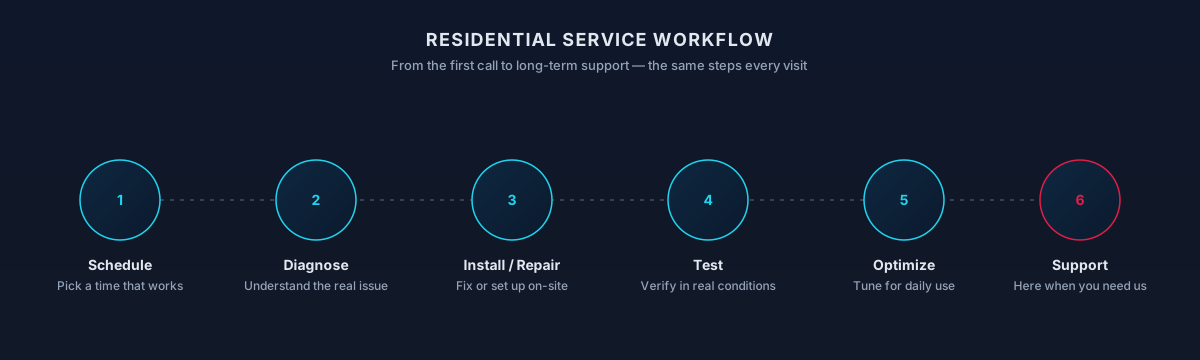
Residential service workflow — schedule, diagnose, install or repair, test, optimize, and support
The same six steps every visit — from the first call through the follow-up support.
What You Get

What's Included

01

Windows, macOS, iOS, iPadOS, and Android

New-device onboarding on every mainstream consumer platform, including cross-platform migrations like Windows-to-Mac or Android-to-iPhone.

02

Account and Recovery Setup

Microsoft account, Apple ID, and Google account signed in with recovery email, recovery phone, and two-factor authentication verified on the correct device.

03

File, Photo, and Mail Migration

Documents, photos, videos, browser bookmarks, and mail accounts moved using the tools that actually fit the old-to-new combination — including OneDrive, iCloud, Google Drive, and external drives.

04

Application Setup

Essential applications installed and configured on the new platform, with an honest read on which legacy applications do not have a modern equivalent.

05

Password Manager and MFA Migration

Careful migration of password managers and authenticator apps so the household is not locked out of banking, email, or cloud storage after the switch.

06

Old-Device Handoff

Signed-out, unlinked, and either erased, prepared for trade-in, or configured for a new user in the household.

Process

How the visit typically goes

  1. Prep

    Confirm accounts, chargers, and old-device access.

  2. Backup old device

    So nothing depends on the old one surviving.

  3. Migrate

    Move data, apps, and settings using supported tools.

  4. Sign in

    Email, cloud, messaging, and 2FA reestablished.

  5. Verify

    Confirm the essentials work before we're done.

Timing varies by household — this is a typical shape, not a promise.

Scope

What a visit may include

Included

  • Data transfer — Photos, contacts, documents, messages where supported.
  • App setup — The apps you actually use, signed in and ready.
  • 2FA reset — Recover authenticator codes without losing accounts.
  • Old device wipe — Cleanly erased if you're passing it on.

Outcomes That Matter

Benefits & Results

The New Device Is Actually Usable

By the end of the visit the device is signed in, the important files are on it, the applications the household uses are installed, and it is backed up.

Key Advantage

Nothing Important Is Stranded on the Old Device

Photos, mail, authenticators, and household licenses are on the device that is now in use — not on a device sitting in a drawer.

The Household Is Not Locked Out Later

Recovery paths and two-factor apps are verified on the correct device before the old one is wiped or handed away.

The Old Device Is Handled Safely

Signed out, unlinked, and either erased or prepared responsibly for its next life — not left with personal data on it.

Expected outcomes

What homeowners usually notice

  • Usable on day one

    Not a week of 'where did that go?'

  • Nothing important lost

    Backups verified before the switch.

  • Clean old device

    Safe to sell, gift, or recycle.

The result

The new device just… works

Signed in, backed up, connected, and set up the way you actually use it — before you have to figure out what a passkey is.

Person happily using a newly set up laptop and phone at a bright home workspace
Who It's For

Who This Service Is For

Whether you're a homeowner, small business, or enterprise — we tailor our approach to your specific needs.

A New Computer Replacing an Older One

Windows or Mac users moving from a laptop or desktop that is slow, failing, or simply due for replacement — including cross-platform switches.

A New Phone or Tablet

iPhone-to-iPhone, Android-to-Android, or cross-platform switches where the household wants the photos, messages, and accounts to end up on the new device with as little loss as possible.

A Device for a Student

A laptop or tablet being prepared for a student — appropriate accounts, cloud storage tied to the right identity, and the applications the school actually uses.

A Device for an Older Parent

An iPad or computer being set up for a parent or grandparent, configured for readability, accessibility, and simple day-to-day use, without unnecessary complexity.

A Handed-Down Device for a Child or Family Member

An older phone, tablet, or computer being repurposed for another family member — cleared of the previous user's accounts and set up appropriately for the new one.

Remote Workers With Employer-Owned Devices

Personal onboarding around an employer-owned device, respecting the employer's IT policies and coordinating with their IT team where their approval is required.

Technology & Tools

We leverage industry-leading platforms and enterprise-grade equipment to deliver reliable, future-proof solutions.

Windows 11 and macOS
iOS, iPadOS, and Android
Cloud Storage
Password Managers and Authenticator Apps
Device-to-Device Transfer Tools
External Drives and USB-C / Thunderbolt

Compatibility

Platforms and standards we work with

  • Windows 11
  • macOS
  • iPhone / iPad
  • Android
  • iCloud
  • OneDrive
  • Google Drive

Working knowledge, not partnership or certification.

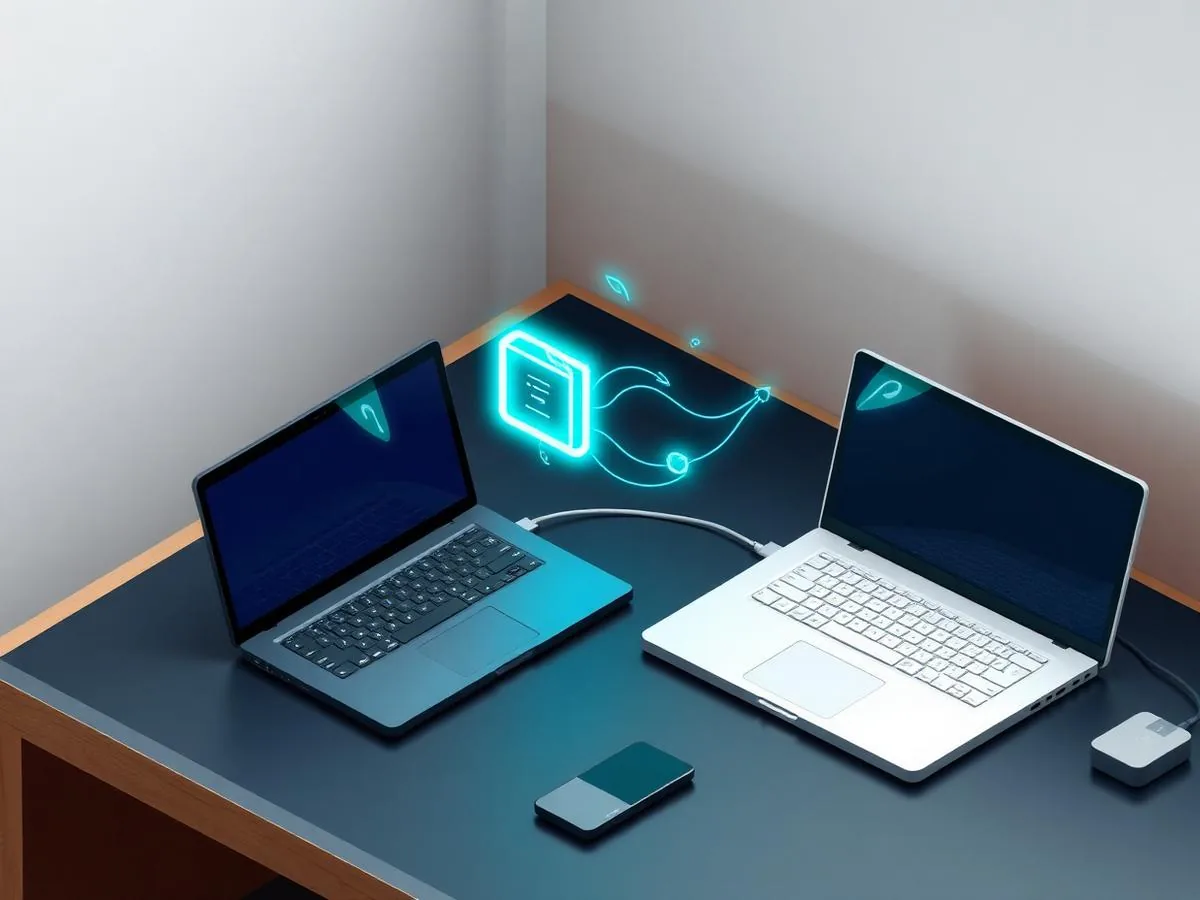
Secure transfer of files and settings between an old and new personal device
Files, photos, and settings moved carefully — the old machine only leaves once we're sure.
Local Availability

In-Home and Remote Support Across the Valley

New devices — a laptop, a phone, a tablet, a smart TV — usually get set up faster in the home where they'll live. We handle account sign-in, data transfer from the old device, printer and Wi-Fi connections, and a quick walkthrough so the handoff to whoever will use the device is smooth.

Remote follow-up is available after the initial setup when small questions come up. We don't claim support for every manufacturer under the sun; we confirm compatibility for your specific device before scheduling.

Local Conditions Worth Knowing

  • Migrating from Windows to Mac (or vice versa) requires a bit more time than a same-platform swap.
  • iCloud, Google, and Microsoft account credentials should be ready before the visit.
  • Condo and apartment building access rules can affect scheduling.
Options

Service Tiers & Options

1

New Computer Onboarding

Full setup of a new Windows or Mac laptop or desktop, including account signup, file and mail migration, application installation, printer reconnection, and backup configuration.

Includes consultation & support
Most Popular
2

Phone or Tablet Onboarding

New iPhone, iPad, or Android device set up with the correct account, migrated data, essential apps, and a safe handoff of the old device.

Includes consultation & support
3

Cross-Platform Switch

Focused help with Windows-to-Mac or Android-to-iPhone switches, where the migration tools only cover part of the story and the rest needs careful planning.

Includes consultation & support
4

Setup for Another Household Member

A device being prepared specifically for a student, a parent, or a child, with the appropriate accounts, controls, and applications for that user.

Includes consultation & support
5

Old-Device Cleanup and Handoff

Signing the old device out of accounts, removing activation locks and family-sharing links, and either erasing it, preparing it for trade-in, or setting it up for a new user.

Includes consultation & support
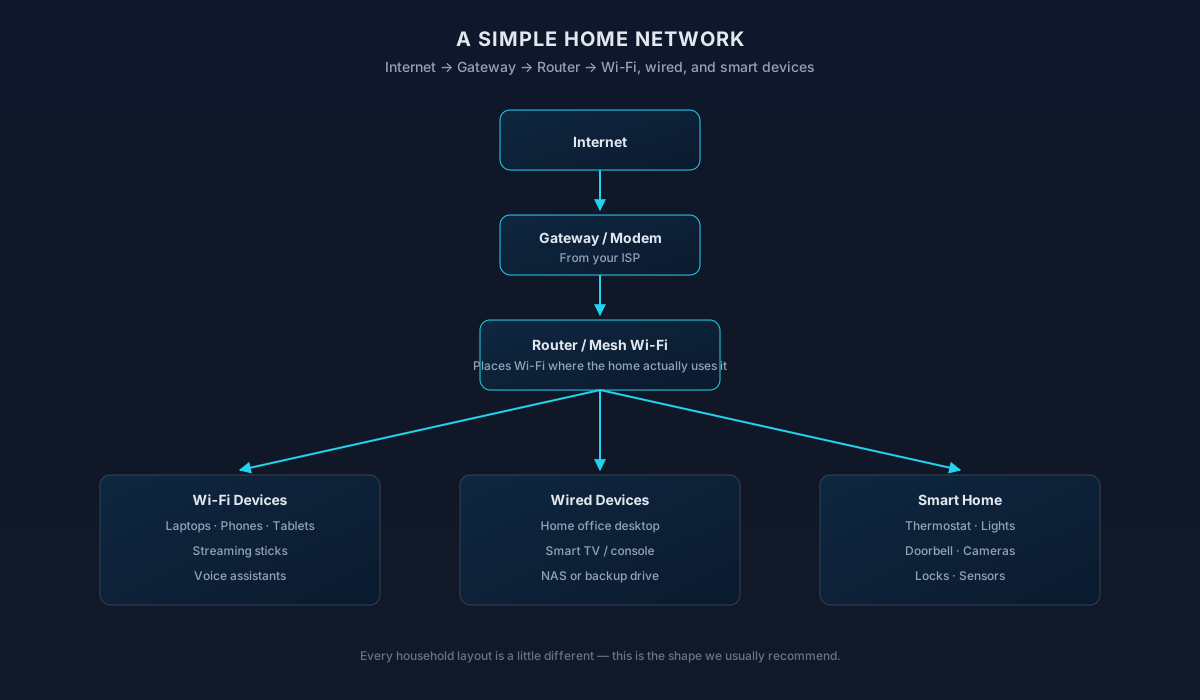
Simple home network diagram: internet, gateway, router or mesh Wi-Fi, and the Wi-Fi, wired, and smart home devices it serves
How a typical home network is put together — a shared reference we use during every setup.

Frequently Asked Questions

Straight answers to what homeowners ask most. Not seeing yours? Contact us and we'll walk you through it.

What's included in setup & migration

Special cases & follow-through

Home Technology Help

Need help with Device Setup & Migration?

Get in touch and we'll help you sort out the technology at home — from a single frustrating device to your whole network. Talk with a real home technology specialist and get straightforward answers.

Friendly, patient help — no jargon.

Before you reach out

Details worth having ready

None of this is required to reach out — it just helps us prepare.

  • The new device (make, model, and any accessories)
  • The device it's replacing, if applicable
  • Accounts to sign in with (Apple ID, Google, Microsoft)
  • Files or data you want moved from the old device

What to expect

How we work in your home

Account recovery access

Signing into a new phone, tablet, or computer needs the account it belongs to — Apple ID, Google account, Microsoft account. Having recovery email, phone, and any two-factor backup codes ready before we start avoids getting locked out mid-setup.

What migrates cleanly and what doesn't

Photos, contacts, calendars, messages, and most apps move well between devices. Some apps re-download but re-authenticate (banking, work tools, DRM'd media), and a handful of older apps may not have a version for the new device.

Erasing the old device — later, not right away

We keep the old device intact until the new one is proven working and your data is verified. Only after that do we walk through a full factory erase and account sign-out, so nothing important is gone before it should be.

Backup before you transition

Before any device swap, we make sure the current device has a current backup — iCloud, Google, OneDrive, or an external drive — so anything unexpected has a way back.

Working with employer-managed devices

If a laptop or phone is owned or managed by your employer, we won't remove security controls, bypass MDM, or change work-account settings. We can help with the surrounding home setup — network, printer, monitor, workspace — and point you to your IT team for anything policy-controlled.

Not sure which one you need?

Compare related residential services

Device Setup vs Home IT Support

One onboards a specific new device end-to-end; the other triages mixed household tech issues.

This page

Device Setup

Choose this when a new or replacement device needs to be set up and moved into daily use.

Covers

  • New laptop, phone, tablet, or desktop onboarding
  • Account, mail, and photo/file migration
  • App reinstall and peripheral pairing
  • Safe handoff or reset of the old device

Not this page

  • Broad household triage across multiple devices
  • Printer-specific driver and queue issues
Related page

Home IT Support

Choose this when several unrelated things aren't working across the household.

Covers

  • Multiple devices, multiple users, mixed issues
  • Sorting what's a network, device, or account problem
  • Coordinating with the right specialist service
  • General in-home help without a fixed project scope

Not this page

  • A single defined issue on one device
  • Full workspace planning and buildout
Visit Home IT Support

Choose this page if: You have one specific device to get up and running the right way.

Choose the other page if: You're not sure what's wrong — several things need looking at.

What to try next

Recommended next services

If this isn't quite the right service — or you're wondering what usually comes next — these are the services homeowners most often need alongside or after this one.

Next Step

Data Backup & Recovery

New device is the ideal moment to turn on automatic backups so photos, documents, and settings are protected from day one.

Explore Data Backup & Recovery
Often Together

Home IT Support

Once a device is set up, ongoing home IT support keeps it — and everything it talks to — working together.

Explore Home IT Support
Related Service

Smart Home Setup

If your new device is part of a smart-home plan, we can integrate it with your existing lights, cameras, thermostats, and speakers.

Explore Smart Home Setup

Related residential services homeowners often pair with this one.

More in Device Setup & Migration