
This page fits if you're seeing:
New printer that needs to be set up on Wi-Fi
Existing printer that recently stopped working
Printer works from one device but not another
Scanning or duplex features aren't set up properly
Get a printer that installs cleanly, reconnects after router changes, and prints from every device in the house.
For homeowners across Las Vegas, Henderson, Summerlin, North Las Vegas, Spring Valley, and Enterprise who need a printer that actually joins the Wi-Fi, stays online, and works from a laptop, a phone, and a tablet without a driver reinstall every week. Inoconn handles printer installation, offline errors, driver conflicts, scanning setup, and the specific compatibility limits between newer computers and older printers — so printing and scanning stop being a weekly problem.
Printers sit in a strange spot in a household. They are supposed to be simple appliances, but they depend on Wi-Fi, on drivers that change with every macOS or Windows update, on manufacturer accounts, and on print queues that quietly fill up in the background. When any one of those layers shifts — a new router, a password change, a system update, a firmware push from the manufacturer — the printer is usually the first thing that stops working, even though the printer itself is fine.
Home Printer Setup is Inoconn's installation and troubleshooting service for that specific piece of the house. It covers connecting a new printer to Wi-Fi or Ethernet, adding it correctly to Windows, macOS, iPhones, iPads, and Android devices, cleaning up duplicate printer entries, fixing offline errors after a router replacement, configuring scanning to computer or email where the device supports it, and setting up multifunction features so printing, scanning, and copying all behave predictably for the whole household.
This is not Home Network Setup — a broken printer is rarely a router problem, and a whole-home Wi-Fi rebuild is a different service. It is not Device Setup — that page covers onboarding a new computer, phone, or tablet, and mentions the printer only as one peripheral among many. If the underlying problem turns out to be the network itself, we say so, and point at the right service instead of blaming the printer.
We are also honest about what a printer service can and cannot do. We do not perform board-level printer repair, we do not refill cartridges, and we do not claim compatibility with operating systems the manufacturer no longer supports. Where an older printer has genuinely aged out of driver support on a new Mac or Windows 11 computer, we say so plainly and help decide whether to keep the printer on a different device, replace it, or work around the limitation.
Inoconn Commitment
Every service we deliver is backed by our satisfaction guarantee and decades of combined IT expertise.
The setting
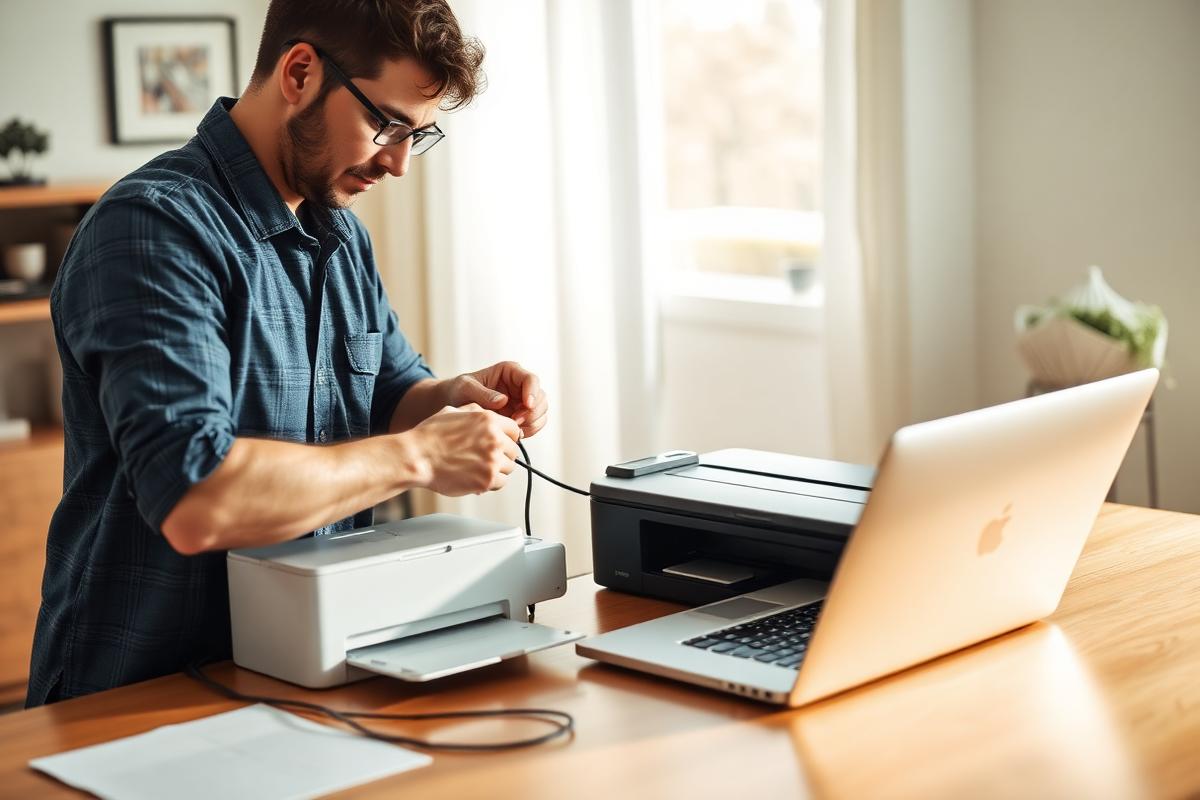
Tucked into a home office, a hallway cabinet, or a shared family space — the goal is a printer that fits the house, not the other way around.

Critical Insight
A printer depends on layers most homeowners never touch: a driver on each computer, a print queue managed by the operating system, a Wi-Fi association held by the printer itself, and often a manufacturer application that pushes firmware or manages ink. Any change in the house — a new ISP gateway, a new mesh system, a new password, a fresh laptop, a system update — can silently invalidate one of those layers. The printer looks the same. It just stops responding.
The most common symptom is 'offline' status on one computer, while the same printer prints from a phone in the next room. That is not a broken printer; it is a stale driver, an IP that changed after a router swap, a duplicate queue with the wrong port, or a spooler service that needs to be restarted. A repair store cannot fix that, because the printer is not the problem. It has to be diagnosed at the computer, the queue, and the network at once.
The other common trap is scanning. A multifunction device can print perfectly and still fail to scan, because scanning uses a different driver stack — TWAIN, WIA, or Image Capture, plus in some cases a manufacturer scanning application. Homeowners often assume the whole device is broken. In most cases only the scanning side needs to be reconfigured, and that is worth doing before deciding the printer has to be replaced.
How it looks
We handle the driver, network, and per-device connection so printing from a laptop, phone, or tablet stops being a guessing game.
Problems → Solutions
The printer's setup wizard cannot see the home network, keeps timing out on WPS, or refuses to accept the password. Often related to 2.4 GHz versus 5 GHz behavior on modern mesh routers.
We put the printer on the correct band, on the main network — not a guest network — with a stable connection method, and we document the network name and IP so it can be reconnected quickly next time something changes.
A new ISP gateway, mesh system, or Wi-Fi password quietly gave the printer a new IP address, but every computer in the house is still trying to reach the old one.
The right driver, installed once, on each computer that needs to print. Manufacturer bloatware skipped unless a specific feature requires it. Old duplicate queues removed so the household is not choosing between three copies of the same printer.
AirPrint or Mopria works instantly, while Windows or macOS shows the printer as offline, paused, or missing entirely — a classic sign of a driver or queue problem, not a printer problem.
We track the offline error back to its actual cause — a changed IP after a router swap, a stalled spooler, a stuck job, a driver mismatch — and correct that specific layer, rather than repeatedly deleting and re-adding the printer.
The printer still prints, but scan-to-computer or scan-to-email quietly failed after an operating-system update, or the scan software cannot find the device on the network anymore.
For multifunction printers, we set up scan-to-computer, scan-to-folder, and where supported scan-to-email, using the driver stack the device expects (TWAIN, WIA, or Image Capture on macOS) so scans land in a predictable place.
The printer shows up two or three times under slightly different names, and the household never knows which one to click. Usually the result of repeated 'add printer' attempts trying to fix an earlier issue.
AirPrint on iPhones and iPads, Mopria or the manufacturer's app on Android, so printing works from the couch as reliably as from the desk.
A new Mac or Windows 11 laptop cannot find drivers for a printer that has been fine for years, because the manufacturer stopped supporting it on the current operating system.
When a printer has aged out of driver support on a current operating system, we say so plainly and help decide between keeping it on an older device, adjusting how it is used, or replacing it — without pushing a specific brand.
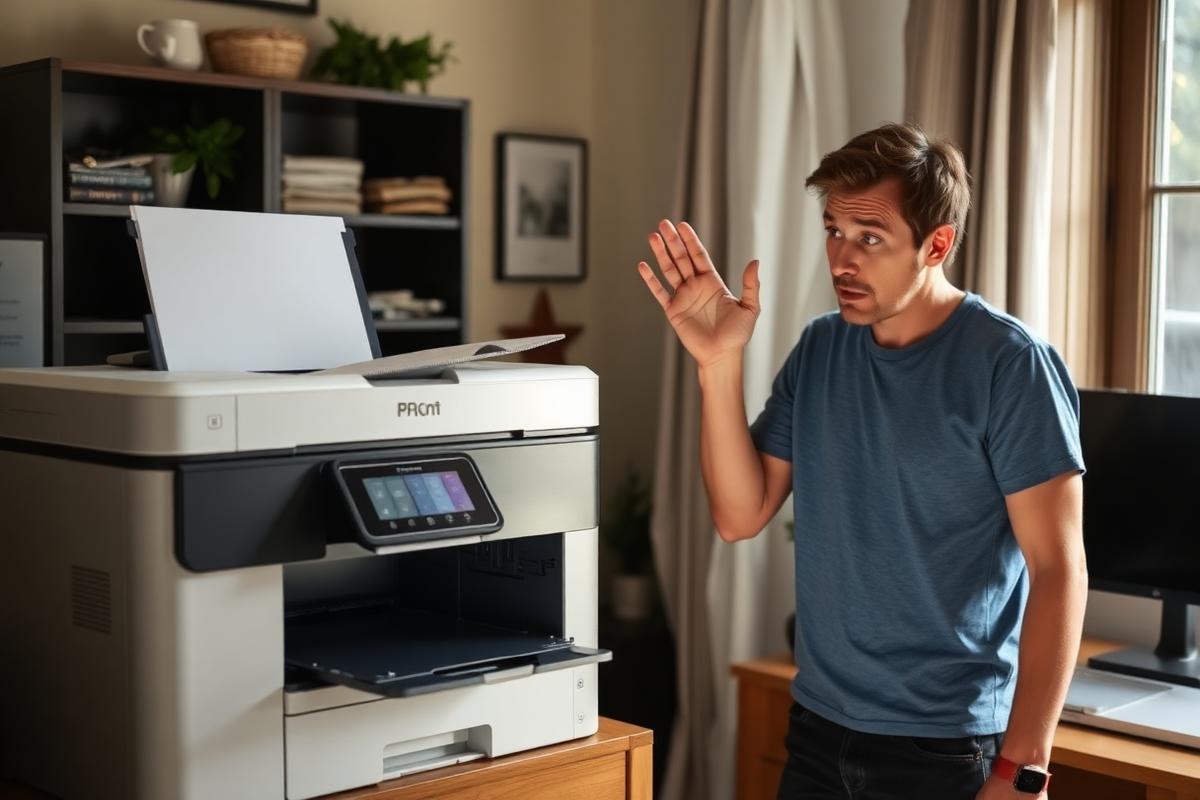
Sound familiar?
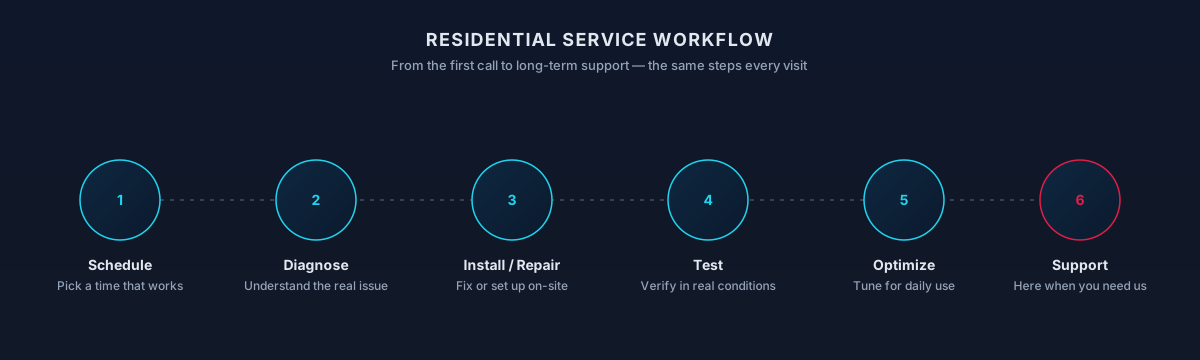
Step by Step
Before touching anything, we confirm whether the issue is the printer, the computer, the network, the driver, the queue, the operating system, or the manufacturer application. Skipping this step is what makes printer problems repeat.
We put the printer on a reliable connection to the home network — Wi-Fi on the correct band, Wi-Fi Direct where appropriate, or Ethernet if the location supports it — and verify the printer is not sitting on a guest network.
We remove stale or duplicate printer entries, install the correct driver on each Windows, macOS, iPhone, iPad, or Android device that needs to print, and set defaults so the household is not choosing between multiple copies.
For multifunction devices, we set up scanning, default save locations, PDF handling, and — where supported — secure or PIN-based printing and scan-to-email through the manufacturer's cloud.
We test printing and scanning from each device that is supposed to use the printer, verify quality on the paper types the household actually uses, and leave a short note with the printer's name, network, and how to reconnect it if the router changes again.
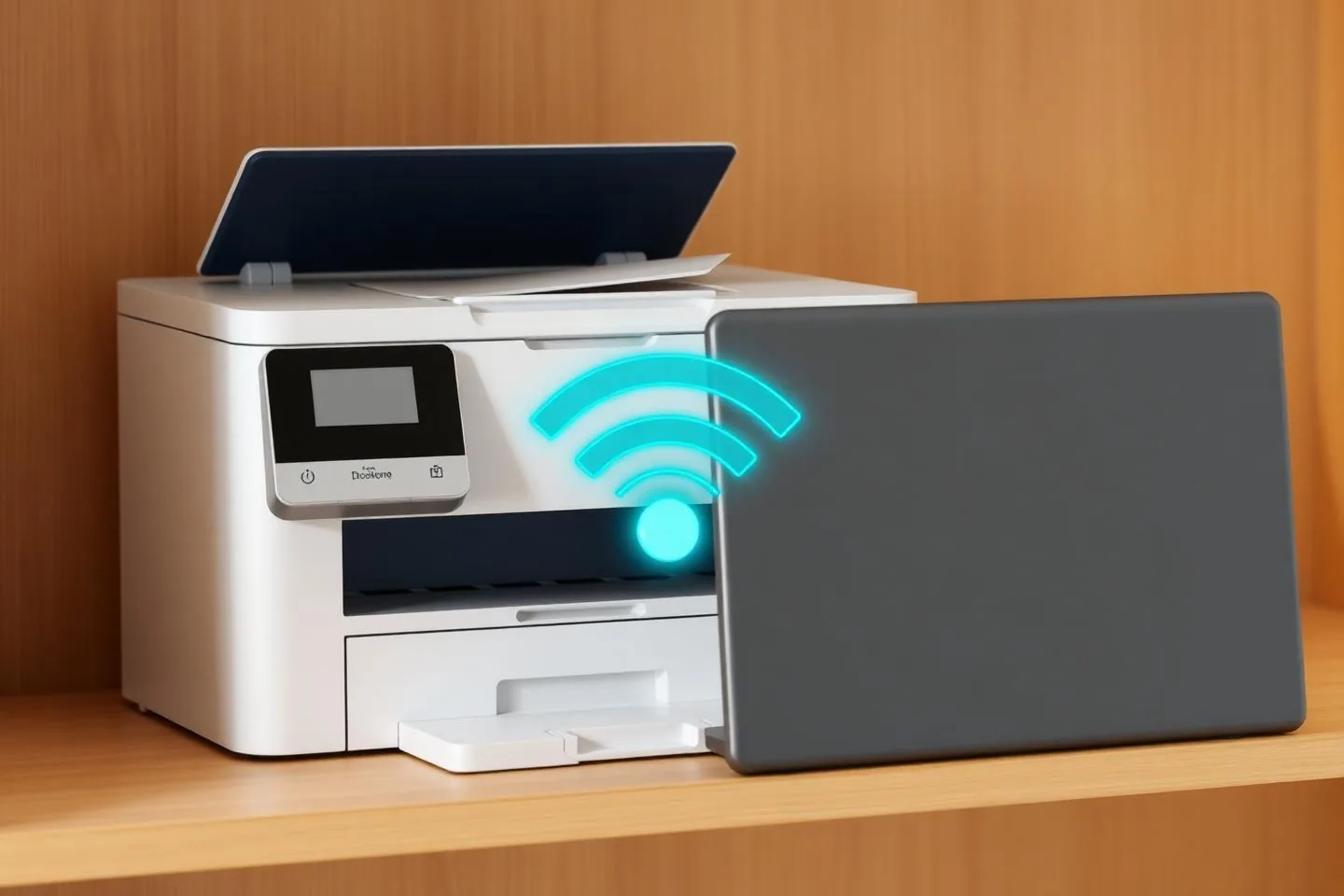
Wi-Fi setup on the correct band, Wi-Fi Direct where useful, Ethernet where the location supports it, and USB where a fixed connection is preferable.
The same printer, correctly added to each operating system the household uses, using AirPrint, Mopria, or manufacturer drivers as appropriate.
Targeted diagnosis of 'offline' errors — IP change, spooler failure, stuck queue, or driver mismatch — instead of repeatedly removing and re-adding the printer.
Scan-to-computer, scan-to-folder, and scan-to-email where supported, using TWAIN, WIA, or Image Capture depending on the platform.
Basic print-quality steps — nozzle checks, alignment, paper-type and tray settings, driver quality profiles — within the limits of what the printer itself supports.
Documented network settings so the printer can be brought back online quickly the next time the ISP swaps the gateway or the Wi-Fi password changes.
Process
Model, connection type, and which devices need to print.
USB, Wi-Fi, AirPrint, or Mopria as appropriate.
The right ones installed on each device.
From every device that should work.
Timing varies by household — this is a typical shape, not a promise.
Scope
Included
Outcomes That Matter
From the laptop, the phone, and the tablet — without a driver reinstall every week or a call for help every time the router restarts.
Key Advantage
The underlying cause is fixed once, at the right layer, instead of temporarily patching the same offline error every month.
Scans go to a known folder, in a known format, from a known device — instead of disappearing into a manufacturer application no one uses.
An honest read on whether a printer is worth keeping on a new operating system, so the household is not fighting a device the manufacturer has already retired.
The result
Laptops, phones, and tablets in the house all print reliably — no more emailing files to the one machine that still works.
Whether you're a homeowner, small business, or enterprise — we tailor our approach to your specific needs.
Homeowners who just bought a printer and would rather not spend the evening on a setup wizard that keeps timing out on Wi-Fi.
Households whose printer went offline the moment the ISP swapped the modem, a mesh system was installed, or the Wi-Fi password changed.
Homes where several laptops, phones, and tablets all need to print — and where the printer currently only cooperates with one of them.
Remote workers and consultants who scan documents regularly and need scan-to-folder or scan-to-email to be reliable, not just occasional.
Households with a printer that used to work fine and stopped after a new Mac, a new Windows laptop, or a major operating-system update.
We leverage industry-leading platforms and enterprise-grade equipment to deliver reliable, future-proof solutions.
Driverless printing from iPhones, iPads, and Android devices — configured on the correct network so discovery actually works.
HP, Canon, Brother, Epson, and similar manufacturer drivers, installed cleanly, with bloatware skipped unless a specific feature requires it.
Scanning stacks on Windows and macOS, configured so scans land in a predictable folder or email destination.
Alternative connection paths for situations where standard Wi-Fi is unreliable at the printer's location.
The Windows and macOS layers where most 'offline' errors actually live — cleaned up and monitored during setup.
Compatibility
Working knowledge, not partnership or certification.
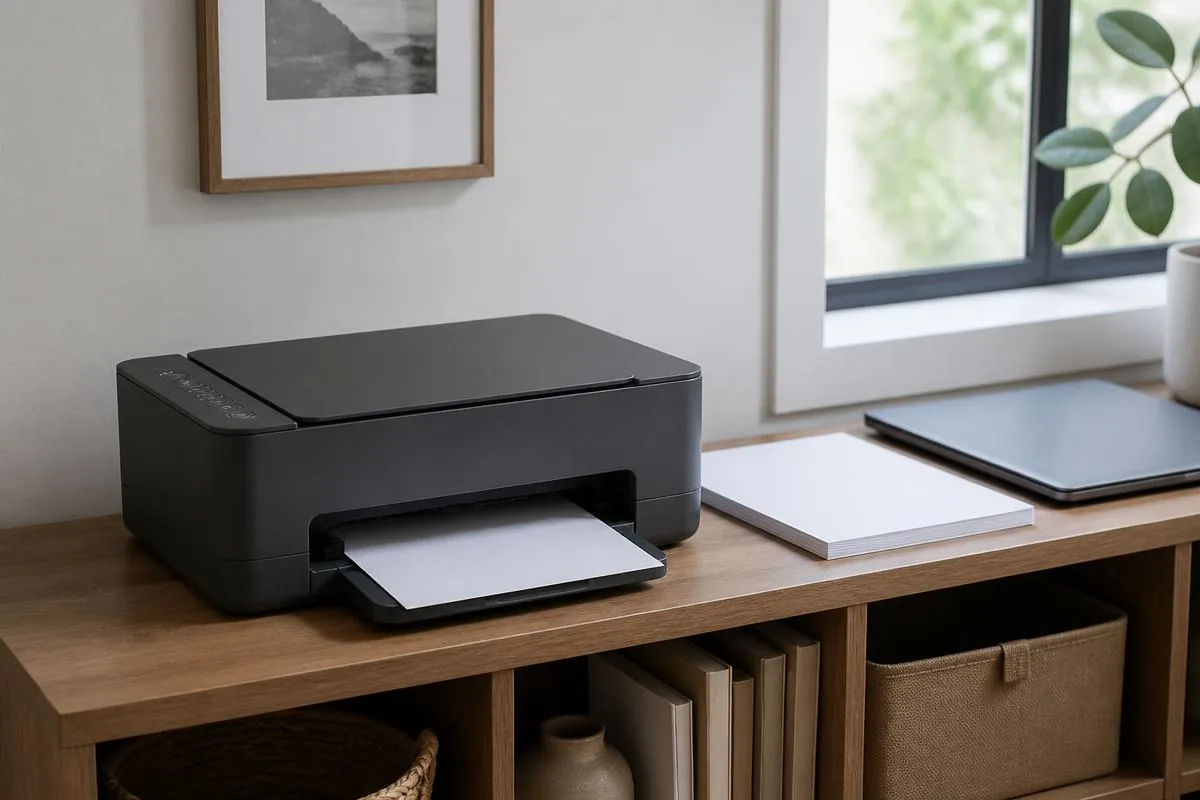
Home printer setup depends on where the printer sits and how it connects. If it is already online and responsive, we can often add it to household devices remotely. When the printer needs to be moved, cabled, or joined to Wi-Fi from scratch, an in-home visit is faster and cleaner than walking through it over the phone.
We work with the common inkjet and laser printers households use for school, home offices, and shared family printing across the Las Vegas Valley.
Not sure if your address is covered? Check the full service areas map or contact us to confirm.
Unboxing through first successful print and scan on every household device that needs it — including the reconnection notes.
Diagnosis and fix for a printer that used to work and now shows offline, focused on the specific layer that broke rather than a full reinstall.
Reconnecting an existing printer to a new ISP gateway, mesh system, or Wi-Fi password, and updating each computer so print jobs go to the right destination.
Focused work on scan-to-computer, scan-to-folder, scan-to-email, and secure or PIN-based printing on multifunction devices.
An honest check of driver availability on the current operating system, and a plan that either keeps the printer working or explains why it should be retired.
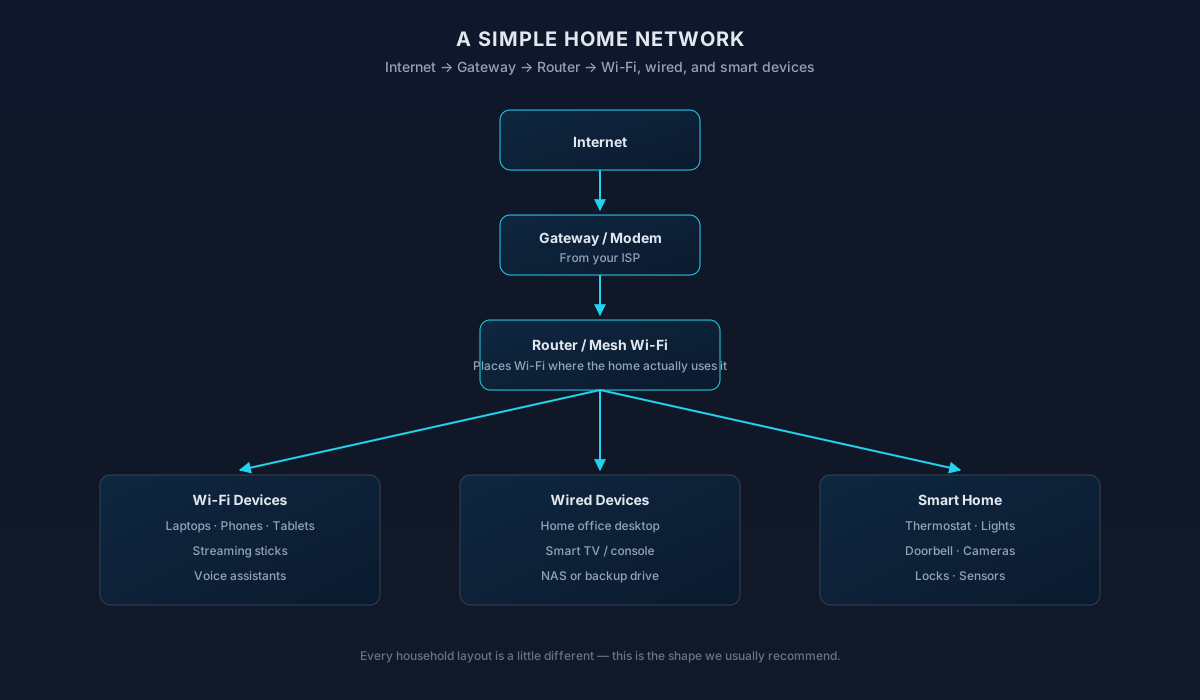
Straight answers to what homeowners ask most. Not seeing yours? Contact us and we'll walk you through it.
Get in touch and we'll help you sort out the technology at home — from a single frustrating device to your whole network. Talk with a real home technology specialist and get straightforward answers.
Friendly, patient help — no jargon.
Not sure yet?
Printer trouble usually falls into a few categories — a short list to see which fits.
New printer that needs to be set up on Wi-Fi
Existing printer that recently stopped working
Printer works from one device but not another
Scanning or duplex features aren't set up properly
Everything else on the network is also failing
See Wi-Fi OptimizationWhat to expect
Newer operating systems sometimes drop support for older printers, and some printers only work fully with the manufacturer's own app. We check what's supported before recommending a fix — replacing a printer we can't drive doesn't help anyone.
'The printer isn't working' is often a Wi-Fi, driver, or firewall issue rather than the printer itself. We isolate that first so a healthy printer doesn't get replaced by mistake.
Some printers (HP+, Brother, Canon) tie features and firmware to a manufacturer account. Setup goes faster when you have that login handy, or we can create one with you during the visit.
Rollers, print heads, and internal sensors are warranty or manufacturer-service territory. We'll help you identify the failure, gather what the manufacturer needs, and get the case opened — without pretending we can rebuild the printer.
We don't stock ink or toner, and we don't recommend refills that void printer warranties. Genuine or reputable third-party cartridges purchased through your normal supplier keep the printer supported.
What to try next
If this isn't quite the right service — or you're wondering what usually comes next — these are the services homeowners most often need alongside or after this one.
Most 'printer' problems are actually network problems — an unreliable Wi-Fi setup is usually the real cause of dropped print jobs.
Explore Home Network SetupOngoing support keeps drivers, scanning, and mobile printing working across every computer, phone, and tablet in the house.
Explore Home IT SupportRelated residential services homeowners often pair with this one.
More in Device Setup & Migration
You might also need