
This page fits if you're seeing:
Setting up a brand-new home office
Improving reliability for daily video calls
Adding a second monitor, dock, or ergonomic setup
Separating work and personal traffic on your network
Turn a spare room, a corner, or a converted guest room into a workspace that actually holds up on a Monday morning.
For remote employees, freelancers, consultants, and small-business owners across Las Vegas, Henderson, and Summerlin who need a home workstation that starts, connects, and runs a full day of video calls without a scramble. Inoconn plans the workspace, connects the equipment, and configures the software so the desk is ready before the first meeting.
A home office is a defined project: one room or corner in the house, a specific person or two who work there, a specific set of tools they use every day, and a specific list of equipment that has to talk to each other reliably. That is different from general household technology help — the scope is narrower, and the standard is higher, because a dropped call or a missing display at 9 a.m. has real consequences.
Home Office Setup is Inoconn's implementation service for that workspace. Whether the trigger is a new remote role in a Summerlin house, converting a guest room in Henderson after a move, adding a second work area for a partner who now works from home, or upgrading a laptop-on-a-kitchen-table arrangement into something permanent, the outcome is the same: a desk where the computer wakes up, the monitors light up in the right order, the webcam and headset default correctly for the meeting platform, the printer prints, files are where they should be, and the connection at that specific spot in the house is stable.
We work through the workspace one layer at a time — space and power, network at the desk, computer and displays, peripherals, meeting platform, cloud storage and backup, security basics — instead of buying a pile of equipment and hoping it composes into a working setup. Where the room is not yet ready for a specific piece (an outlet in the wrong spot, no room for a second monitor, an Ethernet drop that would need construction), we say so up front and adjust the plan rather than force it.
This is a workspace project. It is not household-wide IT help — that is Home IT Support. It is not a whole-home Wi-Fi rebuild — that is Home Network Setup or Wi-Fi Optimization. And it is not a single remote troubleshooting session on a working device — that is Remote Tech Support. Keeping the scope clean is what makes the outcome hold up.
Inoconn Commitment
Every service we deliver is backed by our satisfaction guarantee and decades of combined IT expertise.
The setting
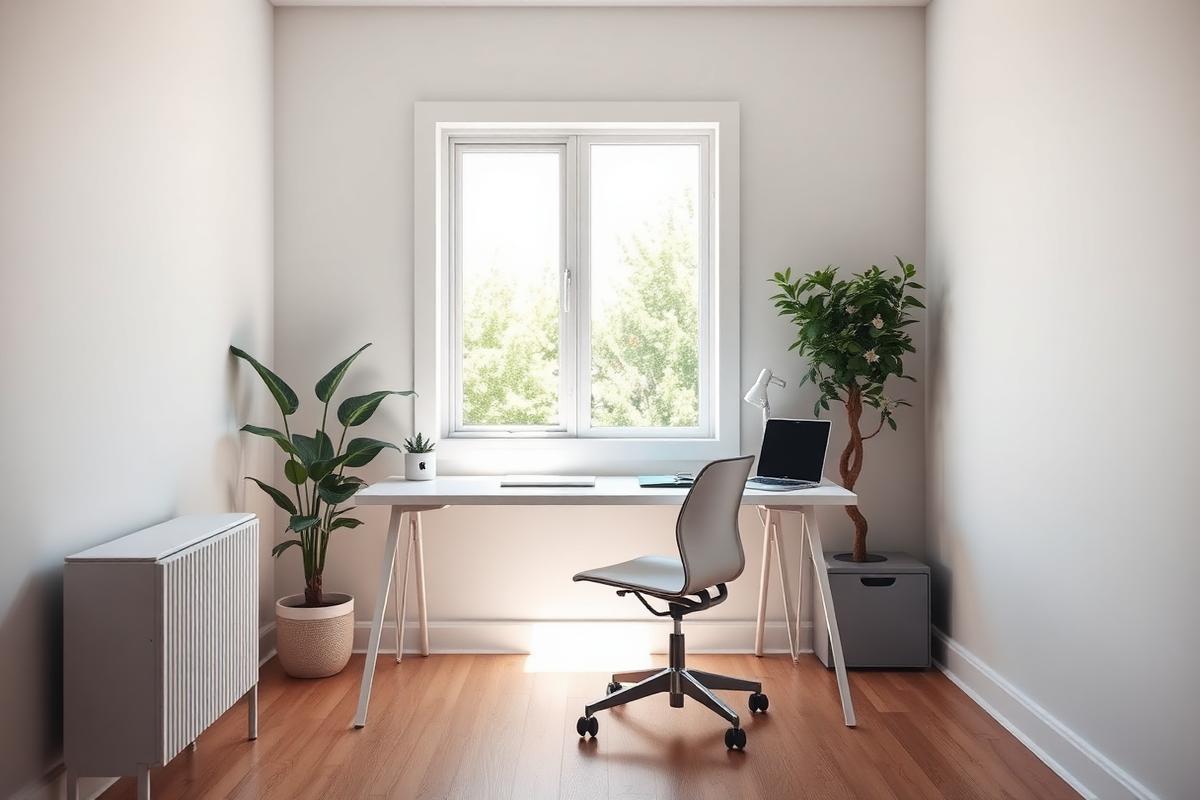
A spare bedroom, a nook by the kitchen, a converted garage — home offices come in every shape. The setup adapts to the room, not the other way around.
Critical Insight
Most 'home office' problems are actually workspace problems. The router is fine — but it lives two rooms and a wall away and the desk gets weak Wi-Fi. The laptop is fine — but there is no dock, so plugging in the second monitor also unplugs the webcam and shifts the audio device mid-meeting. The webcam is fine — but the platform picks the wrong one every time. The printer is fine — but it was set up on the guest network and this laptop cannot see it. Individually these are small; together they are the reason remote work feels harder at home than it did in the office.
A workspace treated as a real setup, once, gets those pieces aligned intentionally. The dock decides the connection order. The meeting platform knows which camera and microphone to pick. The connection at that specific desk is measured and planned around, not assumed. The printer is on the network the workstation actually uses. The result is a room where the person sitting down at 8:55 a.m. can start work at 9:00, not troubleshoot for fifteen minutes first.
The other reason to treat this as a real project is that employer-owned equipment has its own rules. Company laptops usually restrict what can be installed, which VPNs can run, and who can change security settings. A good home office setup respects those limits — configures around the corporate device instead of trying to override it — and is honest about what belongs to the employer's IT team.
How it looks
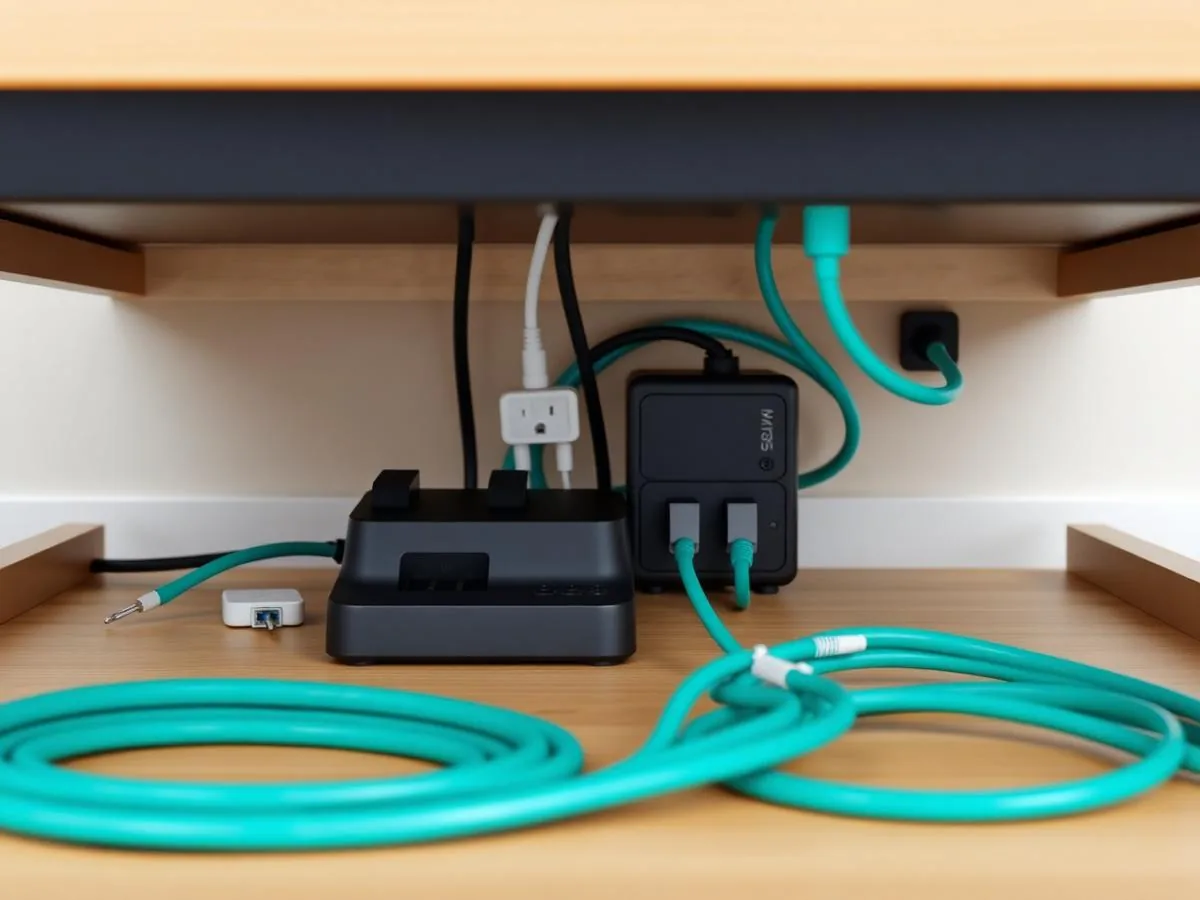
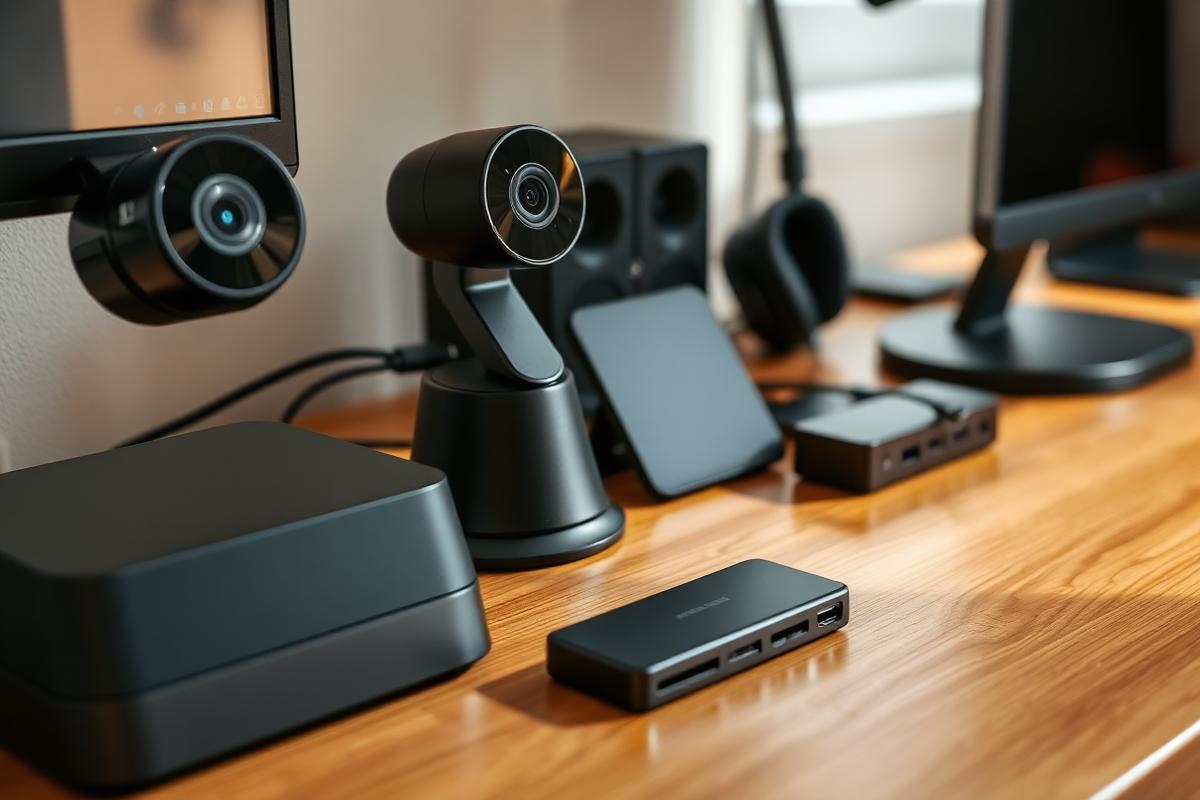
Monitors, dock, camera, mic, and power are routed together so the desk still looks clean once everything is plugged in and working.
Problems → Solutions
The rest of the house streams fine, but the room being used for work sits on the edge of Wi-Fi coverage — often behind a wall or across a floor from the router — and calls suffer the moment the network is under load.
We look at the specific room, the desk placement, the outlets, the router path, the light source and window direction (for camera placement), and the number of people who will use it — and design the setup around that room, not a generic checklist.
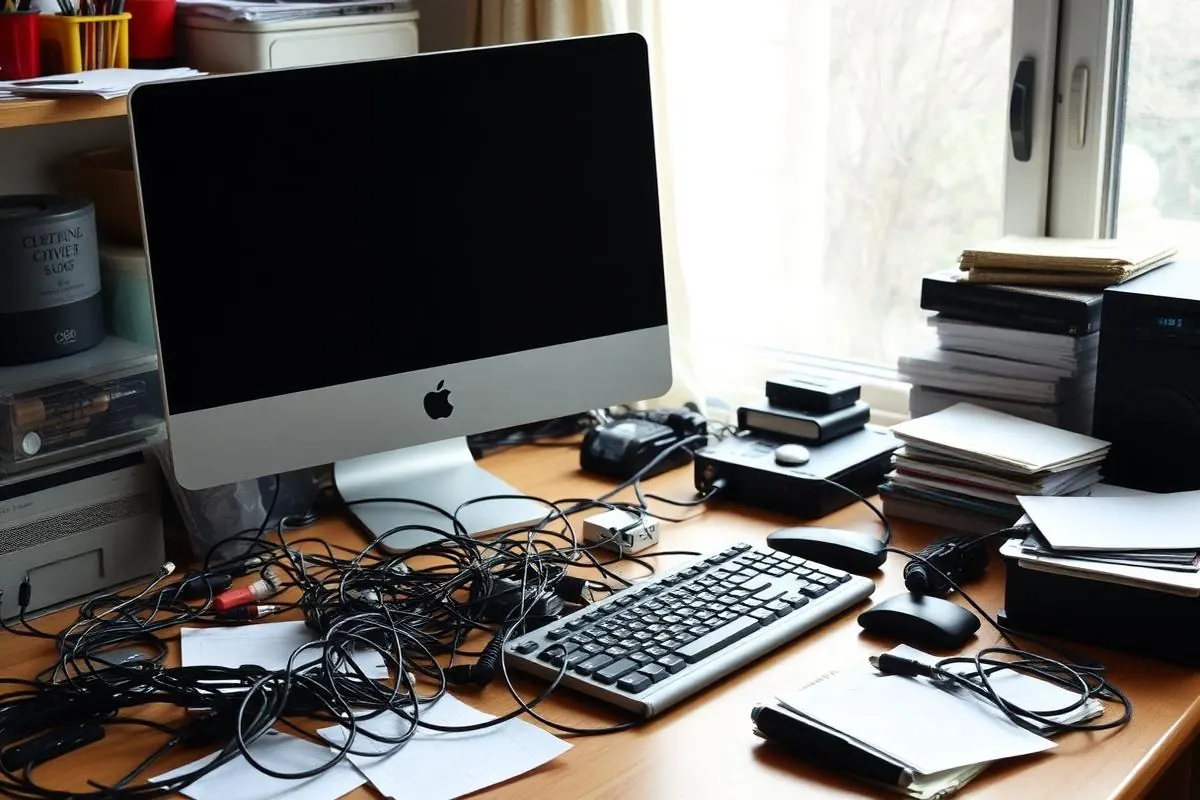
Every morning becomes a ritual of plugging in a monitor cable, a charger, a webcam, a headset, and sometimes an Ethernet adapter — and shifting devices between platforms mid-day breaks the audio and video every time.
Where a wired connection is possible without construction, we run and terminate it cleanly. Where it isn't, we plan for the strongest realistic Wi-Fi at the desk — including mesh node placement or an access-point suggestion — and are honest when a bigger network project would be the real fix.
Zoom defaults to the laptop's built-in mic, Teams picks a Bluetooth speaker that isn't connected, and the good webcam is never selected without manual intervention — every call starts with 'sorry, can everyone hear me?'.
A USB-C or Thunderbolt dock chosen for the laptop and monitors, wired so a single connection brings up displays, network, webcam, headset, and power in the same order every time.
A printer that was set up correctly on a phone or one laptop but was never properly reachable from the actual work computer — so printing means AirDropping to a tablet and printing from there.
We set the default microphone, speaker, and camera in each platform the person actually uses — Zoom, Teams, or Meet — and confirm those defaults hold after a reboot and after a headset disconnect/reconnect.
The company laptop won't let certain things be installed, the corporate VPN behaves oddly on the home network, and no one has explained what can and cannot be changed on that machine.
Printer installed against the network the workstation is on, cloud storage (OneDrive, Google Drive, or iCloud Drive) signed in and pointed at the right folders, and a basic backup review for work files that should not live only on the local disk.
Work started on the dining room table 'just for a few weeks' and never moved — now the household needs the table back and the workspace has to actually live somewhere with a plan.
For company-managed laptops we configure what is safely allowed — display arrangement, dock behavior, meeting defaults, VPN client behavior on the home network — and clearly flag anything that has to go to the employer's IT department.
Step by Step
We visit the room the desk lives in, look at outlets and cable paths, note the router's location, check signal at the actual desk, and confirm which devices, monitors, and peripherals are involved.
You get a short plan: which pieces are in scope for this visit, which pieces need to be purchased first, which pieces belong to the employer, and which pieces would need a bigger service (network install, cabling behind drywall) if you decide to pursue them later.
Monitors placed and connected, dock wired and cable-managed, webcam mounted at eye level, headset paired, printer physically placed with clear line-of-sight to the router if wireless.
Operating system settings for displays, sleep, and defaults; meeting platforms configured for the correct camera, mic, and speaker; Microsoft 365 or Google Workspace signed in on the workstation; cloud drive folders confirmed; VPN client behavior tested on the home network.
A test meeting is run end-to-end — camera, mic, screen share, second monitor — a test print is made, a file is opened from cloud storage, and the workstation is rebooted once to confirm everything comes back cleanly. You get a short summary of what was set and what to watch for.
Docking station chosen and configured so a single cable to the laptop brings up displays, network, webcam, headset, and power, with predictable device order after every reconnect.
Monitors physically placed and mounted where possible, connected via HDMI, DisplayPort, or USB-C as the hardware supports, with display arrangement, scaling, and primary display set for the way the person actually uses them.
Camera position and framing set at eye level, USB microphone or headset selected as the platform default, and Zoom, Teams, and Meet each configured to pick the correct devices without manual selection.
Ethernet installed where it can be run cleanly to the desk, or a documented Wi-Fi plan for the specific room — mesh node placement, band selection, and coverage measured at the actual chair.
Home printer connected to the same network segment the workstation lives on, drivers installed on the work computer, and default paper size, tray, and duplex behavior confirmed.
OneDrive, Google Drive, or iCloud Drive signed in on the workstation, work folders pointed at the correct cloud location, and a review of whether local-only files are being backed up anywhere.
Sign-in, screen lock, multi-factor prompts, and password manager sign-in reviewed on the work computer, with sensible defaults confirmed — without overriding any employer-managed security policy.
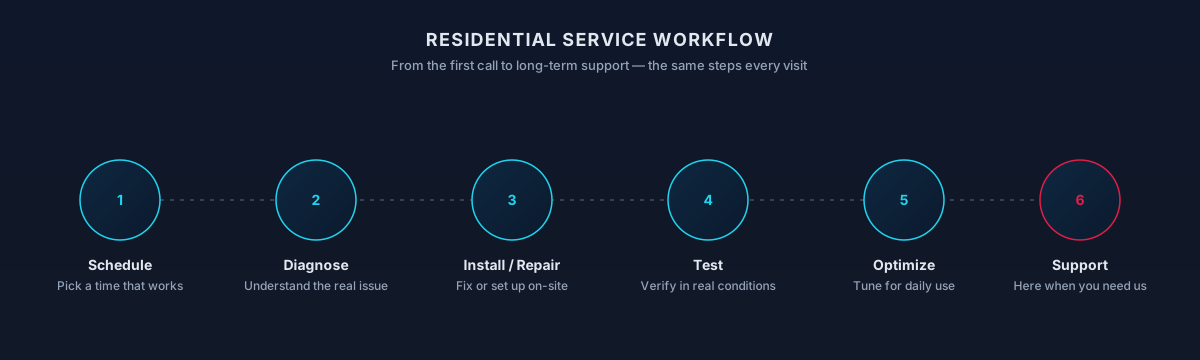
Process
What the workday needs to feel like.
Power, network, lighting, noise.
Mount, cable, and configure equipment.
Run a real call to verify audio and video.
Notes on how to keep it working.
Timing varies by household — this is a typical shape, not a promise.
Scope
Included
Outcomes That Matter
Sit down, unlock the computer, and the meeting platform, camera, microphone, monitors, and network are already where they should be.
Key Advantage
No more re-plugging cables to switch modes, no more picking the right microphone every call, no more printing from a tablet because the laptop can't see the printer.
The plan is scoped to the room and the equipment that actually exists — with honest calls about what would require additional work — instead of promising a corporate-grade result the space can't support.
Whole-home Wi-Fi problems, cabling behind drywall, employer-managed security changes, or licensed electrical work are named clearly and routed to the right party rather than absorbed silently into the visit.
Expected outcomes
The small stuff stops interrupting focus.
On camera and on the phone.
Files and setup can be restored.
The result
You sit down, plug in one cable, and the day starts — no fussing with adapters, no missing camera, no scrambling before a meeting.
Whether you're a homeowner, small business, or enterprise — we tailor our approach to your specific needs.
New hires who need the workspace ready for a corporate laptop, a company VPN, and a full week of scheduled meetings from day one.
Employees who split time between office and home and want the home side to stop feeling like a fallback.
Independent professionals whose day-to-day credibility depends on video calls and screen shares looking and sounding right, every time.
Owners who need a real workspace — printer, scanner, dual monitors, dependable video — without turning the setup into a commercial IT project.
Homes where a second adult now works remotely and needs a separate workstation that does not compete with the first one for the same corner and the same Wi-Fi.
Households setting up a workspace in a new-build in Summerlin, a converted guest room in Henderson, or a spare bedroom in Spring Valley or Enterprise.
We leverage industry-leading platforms and enterprise-grade equipment to deliver reliable, future-proof solutions.
Both major desktop operating systems for personal and company-owned workstations, including display, sleep, and default-device configuration.
Sign-in and sync setup for Microsoft 365 or Google Workspace at the individual workstation level — mail, calendar, and cloud drive folders — not organization-wide licensing.
Camera, microphone, and speaker defaults configured in each platform the person actually uses, with the correct devices selected after reboot and after headset reconnects.
Dock selected for the specific laptop and monitor combination, wired to bring up displays, network, webcam, and headset predictably from a single connection.
Dual and multi-monitor arrangements over HDMI, DisplayPort, or USB-C, with resolution, refresh rate, scaling, and primary display set correctly for the person's workflow.
External webcams (Logitech, Elgato, and similar) and wired or wireless headsets configured as platform defaults with framing and levels tested.
Home printer and scanner installed against the same network the workstation uses, with drivers on the work computer and default behavior confirmed.
Cloud storage signed in on the workstation and pointed at the folders that actually hold working files.
Desk-level connectivity assessed and configured — wired where realistic, planned wireless where not — with honest scope about when a bigger network project is the real answer.
Password manager signed in on the workstation and multi-factor prompts confirmed on the phone the person actually carries.
Compatibility
Working knowledge, not partnership or certification.
Home offices across the valley range from a dedicated room in a Summerlin home to a shared corner in a Henderson apartment. Reliable video calls, a stable connection to employer systems, and clean audio matter more than any single piece of hardware — and the right answer depends on the room, the ISP handoff, and how many other people are online at the same time.
We prepare what we can remotely — accounts, VPNs, cloud tools — and complete the physical setup in the home so displays, docks, cameras, and network paths are working the way you'll actually use them.
Not sure if your address is covered? Check the full service areas map or contact us to confirm.
A fresh workspace built from a room, a desk, and a list of equipment — planned, physically installed, and configured end-to-end for a single work role.
A targeted visit to fix the specific friction points in an already-in-use workspace — desk-level connectivity, dock behavior, meeting platform defaults, printer routing, monitor arrangement — without rebuilding everything.
Adding a second work area for a partner or family member who has also moved to remote work, planned around the shared network and shared spaces so the two workstations do not undermine each other.
Straight answers to what homeowners ask most. Not seeing yours? Contact us and we'll walk you through it.
Get in touch and we'll help you sort out the technology at home — from a single frustrating device to your whole network. Talk with a real home technology specialist and get straightforward answers.
Friendly, patient help — no jargon.
Not sure yet?
So we start from the right place.
Setting up a brand-new home office
Improving reliability for daily video calls
Adding a second monitor, dock, or ergonomic setup
Separating work and personal traffic on your network
You need ongoing tech help across the household
See Home IT SupportThe next steps
A clear, low-pressure path from the first message to the work getting done.
Share a short description of the issue or project. Screenshots and device details help, but aren't required.
A technician looks at what you've described and asks any clarifying questions before recommending an approach.
You'll get a plain-language plan covering what we'd do, whether it's remote or in-home, and what's involved.
Once you're comfortable, we schedule the session. You stay informed at each step and can stop or adjust anytime.
What to expect
For employer-owned laptops and phones, we stay out of MDM, security agents, VPN clients, and work-account settings. We can build a great home setup around that device — network, monitor, dock, printer, lighting, audio — and hand policy-controlled work off to your IT team.
Some work apps and VPNs have specific requirements (browser version, corporate certificate, split-tunnel settings). We'll test what we can and flag what needs a ticket with your employer's IT so nothing gets 'fixed' in a way that breaks tomorrow's login.
Docks, monitors, and adapters have to match the ports and power your laptop supports. Knowing the exact model of your laptop before we shop for accessories avoids returns and second trips.
We route cables cleanly, mount monitors on existing surfaces, and use surge-protected power strips. Adding outlets, hardwiring under floors, or drilling into structural elements is work for a licensed electrician or contractor.
A few small steps ahead of time make the visit faster and less stressful. None of these are required — we'll help on-site if anything is missing.
What to try next
If this isn't quite the right service — or you're wondering what usually comes next — these are the services homeowners most often need alongside or after this one.
A dedicated home office runs best on a properly designed network — wired backhaul, guest isolation, and reliable video-call performance.
Explore Home Network SetupOnce your office is set up, ongoing support keeps printers, video conferencing, and everyday apps working while you focus on your work.
Explore Home IT SupportFor quick fixes during the workday, a remote session gets you back to work without waiting for an on-site visit.
Explore Remote Tech SupportRelated residential services homeowners often pair with this one.
More in Home Office & Remote Work
You might also need